
Telia Smart Connect is also available as an app on both the App Store and Google Play. This means that you can access your switchboard on your mobile devices with just a few taps, making it even more convenient to have full control.





Summer brings a unique set of challenges for businesses. With team members heading off on well-deserved holidays, it’s important to make sure your communication setup is ready to handle calls professionally, even with fewer people at their desks. Telia Smart Connect has everything you need to keep your business reachable and your callers well-informed throughout the summer period.
1. Update opening hours and announcements
Clear, accurate communication starts before a call is answered. If your business is operating on reduced hours during the summer, or closing for a period entirely, callers should always hear a message that reflects the current situation. This is managed through the Opening Hours and Audio Files features in Smart Connect.
How to create a summer audio file
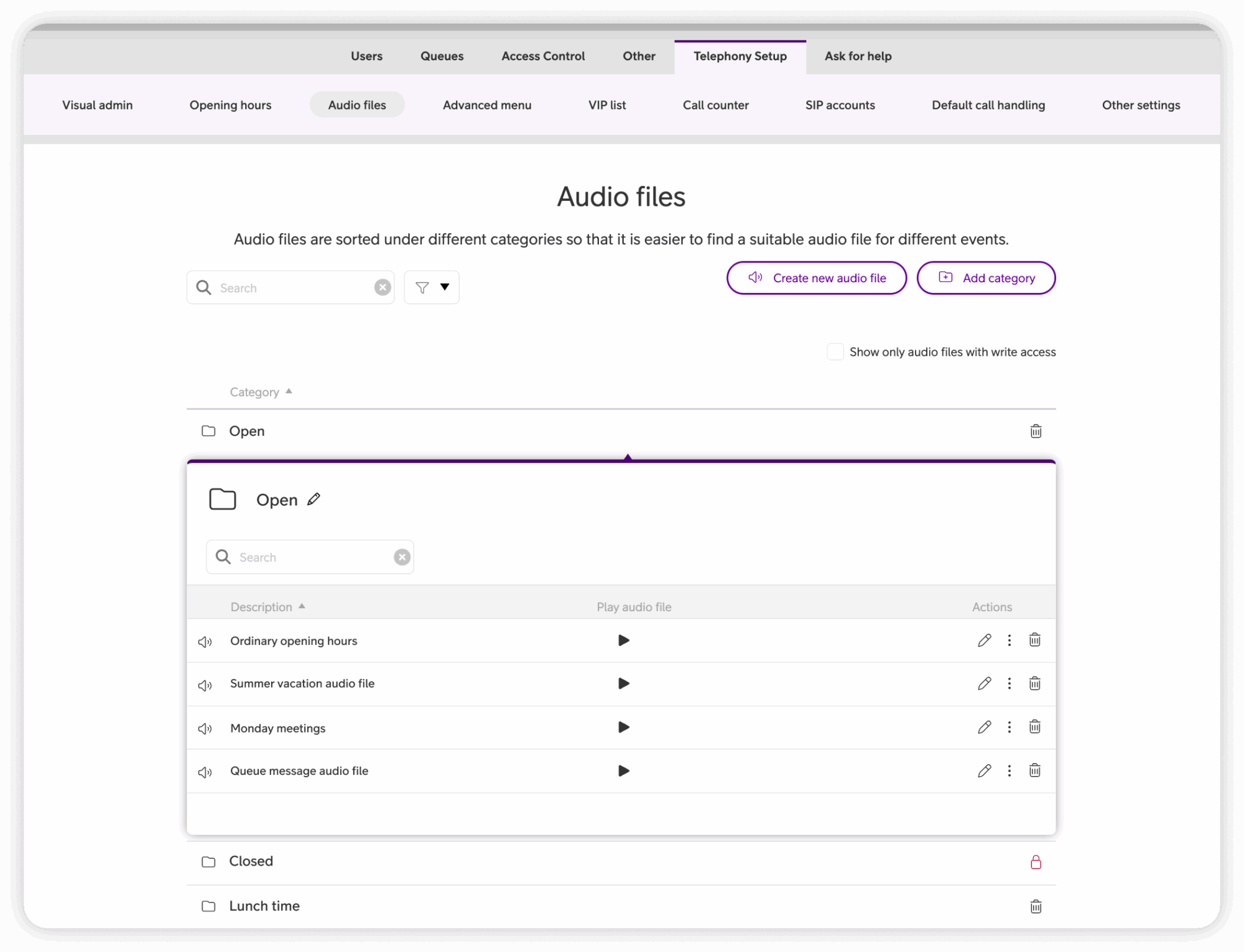
Start by creating the audio file you want callers to hear during the summer period, for example a message informing them that the office is closed until a specific date. Once the file is saved, you can assign it to your opening hours exception in the next step.
On desktop:
- Click the main menu ☰ in the upper left corner.
- Click Administration.
- Click Telephony Setup.
- Click Audio Files.
- Click Create new audio file.
- Choose your preferred method: Text to speech, Recording in web browser, Record by telephone, or Upload an audio file.
- Click Save.
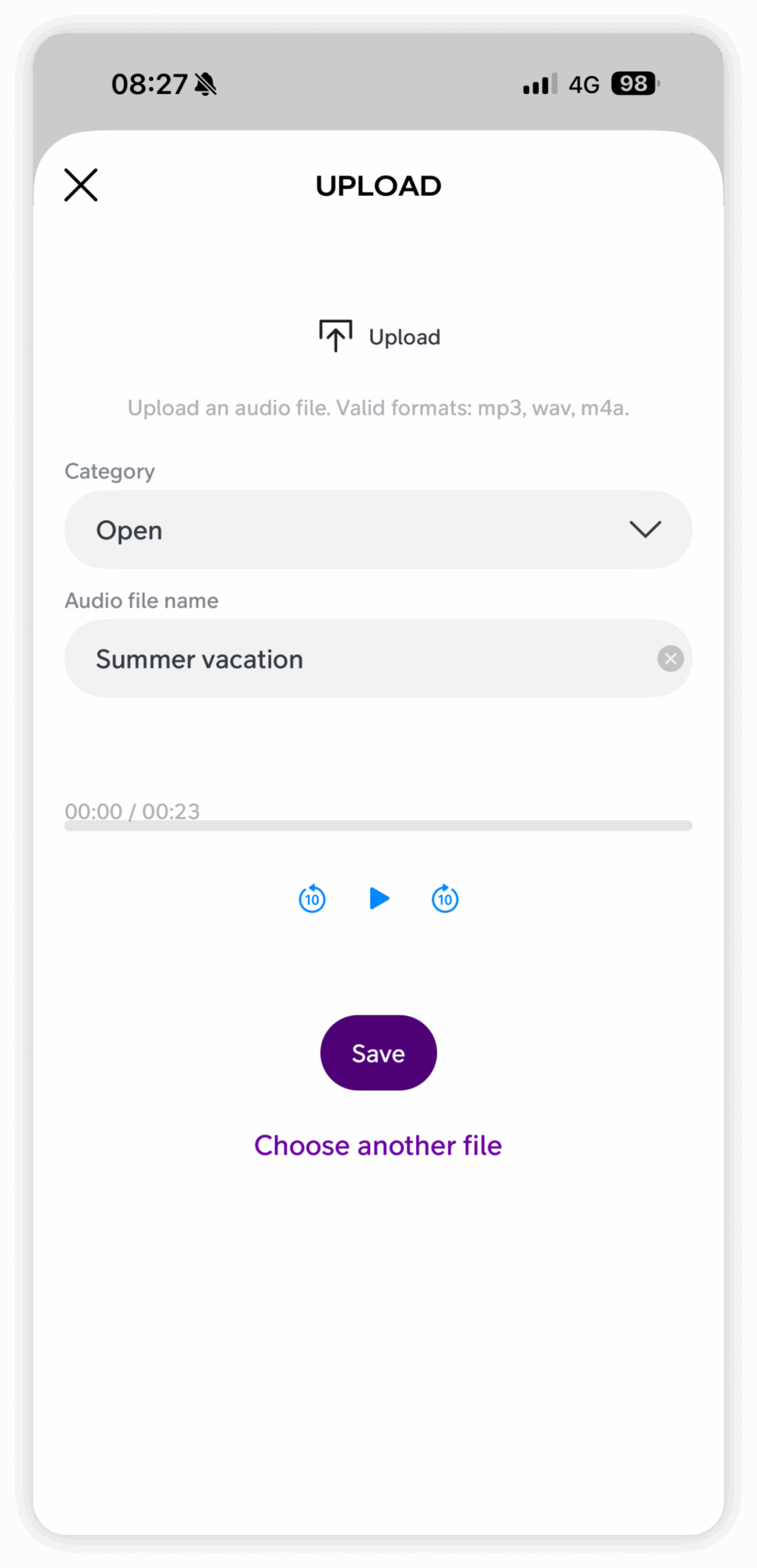
On the mobile app:
- Tap the main menu ☰ in the upper left corner.
- Tap Administrator.
- Tap Audio Files.
- Tap New audio file in the bottom navigation.
- Choose your method: Record, Text to speech, or Upload.
- Follow the steps for your chosen method, then tap Save.
Tip: Text to speech is a quick way to create a professional-sounding message without needing to record manually. For consistency, consider using the same voice across all your audio files.
How to create a summer exception in opening hours
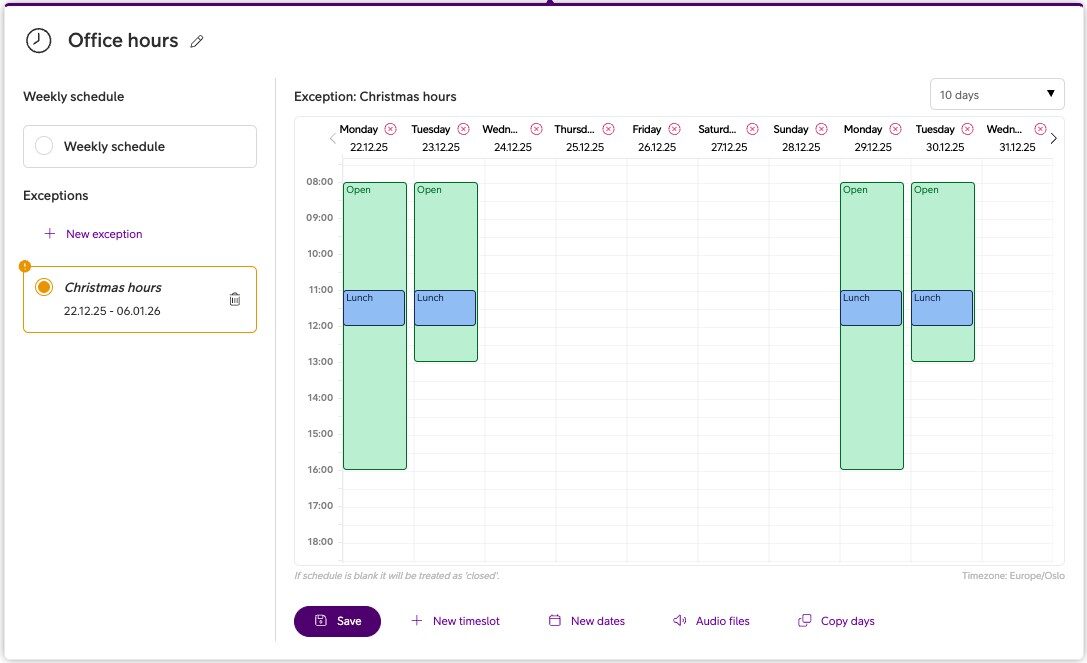
Rather than changing your standard weekly schedule, the recommended approach is to create an exception that applies to specific dates. Your regular schedule will then resume automatically once the exception period ends.
On desktop:
- Click the main menu ☰ in the upper left corner.
- Click Administration.
- Click Telephony Setup.
- Click Opening Hours.
- Select the opening hour you want to edit, or create a new one.
- Click + New exception.
- Give it a name (e.g. “Summer 2026”).
- Select the From and To dates for the period.
- Define your custom hours for each day. Days left blank are treated as closed.
- Click Audio files and assign the relevant audio file to the Closed state.
- Click Save exception.
Note: Make sure the Play audio file element in your IVR is set to “Audio file is controlled by opening hours”. This can be changed in the Visual Administrator.
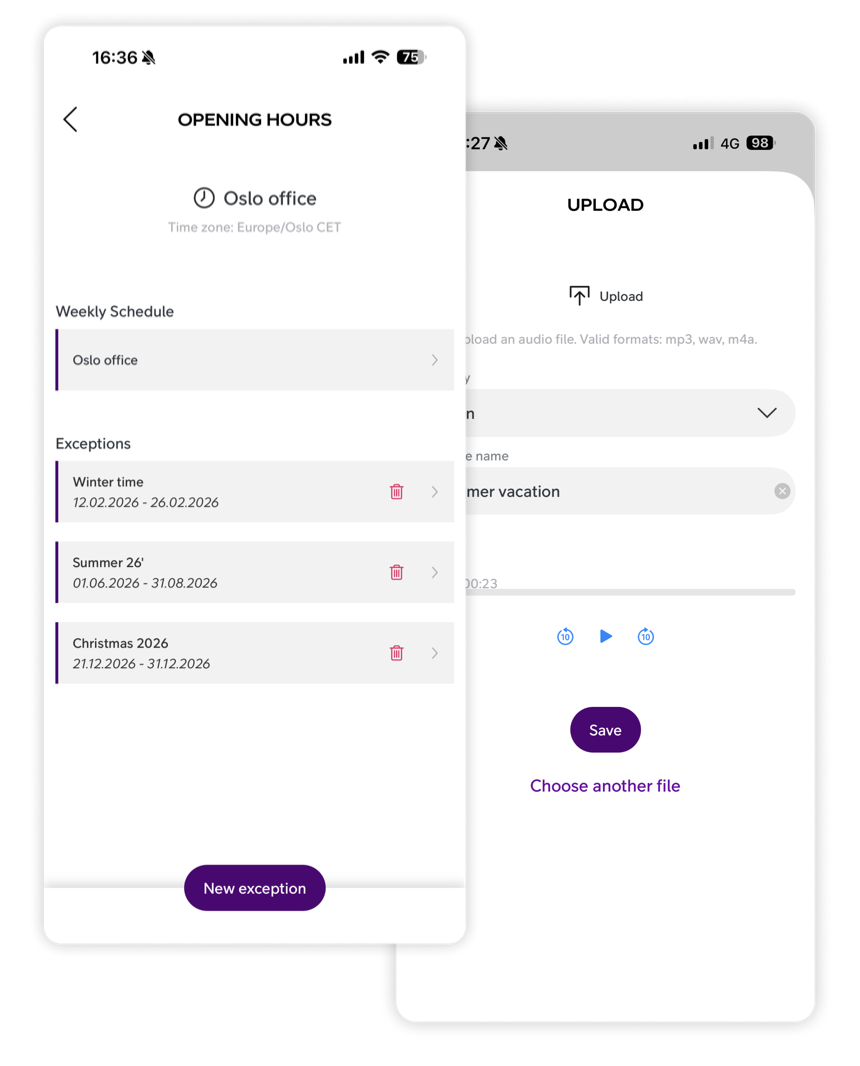
On the mobile app:
- Tap the main menu ☰ in the upper left corner.
- Tap Administrator.
- Tap Opening Hours.
- Select the opening hour you want to edit.
- Tap + New exception at the bottom of the screen.
- Enter a name for the exception and select the dates it should apply to.
- Tap Save.
- Open the exception, tap + at the bottom of the screen, then tap Audio files.
- Select the audio file for each relevant state (e.g. Closed).
- Tap Save.
2. Automate availability with calendar integration
Telia Smart Connect’s calendar integration syncs directly with Microsoft 365, ensuring employee availability reflects their real-time schedules. During the summer, when team members may be on leave at different times, this helps ensure calls are always routed to someone who is actually available.
- Calls can be routed to an alternative team member when someone is away.
- Colleagues can see who is on vacation or unavailable, improving internal coordination.
- If a team member is away, their calls can be forwarded to another colleague or an appropriate queue.
Tip: If you don’t have the calendar integration add-on, you can still sync with your mobile calendar in the Smart Connect mobile app. Read more in the blog post below.
Blog post: Read more about calendar integration
User guide: Learn how to set up calendar integration
User guide: Learn how to set up availability preferences
3. Update availability across devices
Employees should update their availability status in Smart Connect before going on leave, so calls are handled correctly from day one. This can be done from both the desktop and the mobile app.
- Set status to “Vacation” or “Out of office” to clearly signal unavailability.
- Forward calls to a colleague or queue so nothing goes unanswered.
Tip: Encourage team members to update availability from the mobile app before their last working day, so the setup is in place when they leave.
User guide: Learn how to update your availability on mobile
User guide: Learn how to update your availability on desktop
Tips to prepare your communication setup for summer
- Set summer opening hours: Create exceptions in your opening hours for any days or periods with reduced or no availability, and assign the relevant audio files.
- Record a summer message: Let callers know when you are back, and provide an alternative (such as email) if relevant.
- Check your call flow: Make sure every state in your opening hours has a connected element in the IVR, including any lunch or custom states. If a state has no element, calls will default to the open path.
- Update availability: Make sure team members on leave have updated their availability status and set appropriate call forwarding before they go.
- Plan cover: Coordinate with colleagues to ensure queues are staffed during peak periods.

Ready for summer?
A little preparation goes a long way. By updating your opening hours, recording a summer message, and making sure availability is set correctly across the team, you can head into the summer break knowing your callers will always be met with a clear and professional response.
For more detail on the features covered in this post, visit the user guides for Opening Hours (desktop), Opening Hours (mobile app), Audio Files (desktop), and Audio Files (mobile app). If you have questions or need help with your setup, get in touch with us.



Ready to connect?
Speak with one of our local sales offices today to learn more about the possibilities and opportunities Telia Smart Connect can bring to your team.
Connect with us