
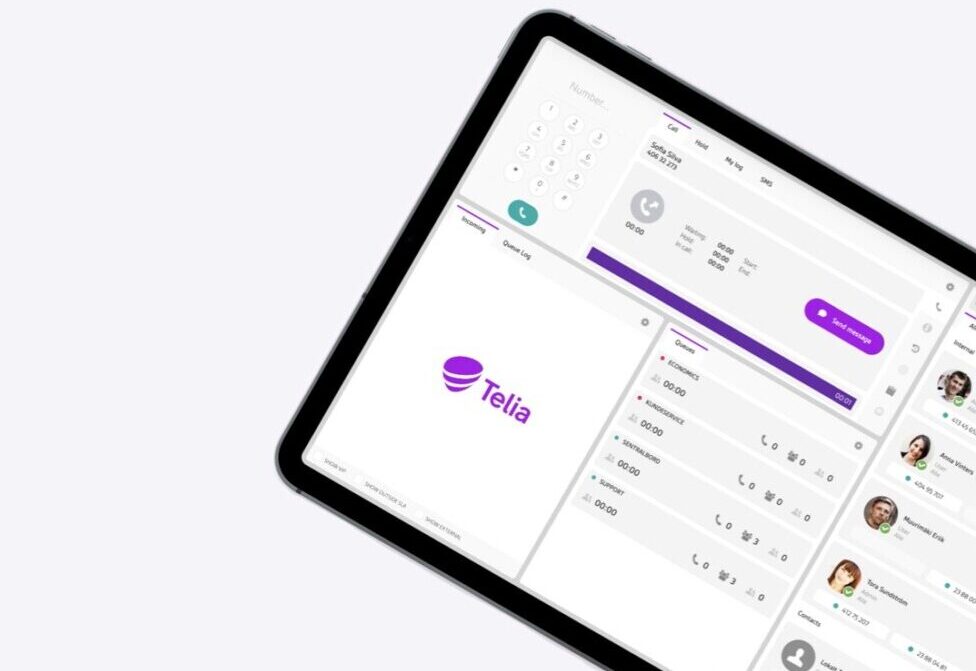
Telia Smart Connect is also available as an app on both the App Store and Google Play. This means that you can access your switchboard on your mobile devices with just a few taps, making it even more convenient to have full control.


The Christmas holidays are one of the busiest and most fragmented periods of the year. Red days, half days and team members taking time off with family all make it harder to keep the phones covered. With a little planning in Telia Smart Connect, you can make sure every caller gets a clear, friendly answer, whether you are open, closed or somewhere in between.
1. Update opening hours and announcements
Over Christmas and New Year, your opening hours often change from day to day. You might close early on Christmas Eve and New Year’s Eve, stay closed on the public holidays and run reduced hours in the days in between. Callers should always hear a message that matches the day they call. This is managed through the Opening Hours and Audio Files features in Smart Connect.
How to create a Christmas audio file
Start by creating the message you want callers to hear while you are closed, for example a holiday greeting that tells them when you are back and where they can turn in the meantime. Once the file is saved, you can assign it to your Christmas exception in the next step.
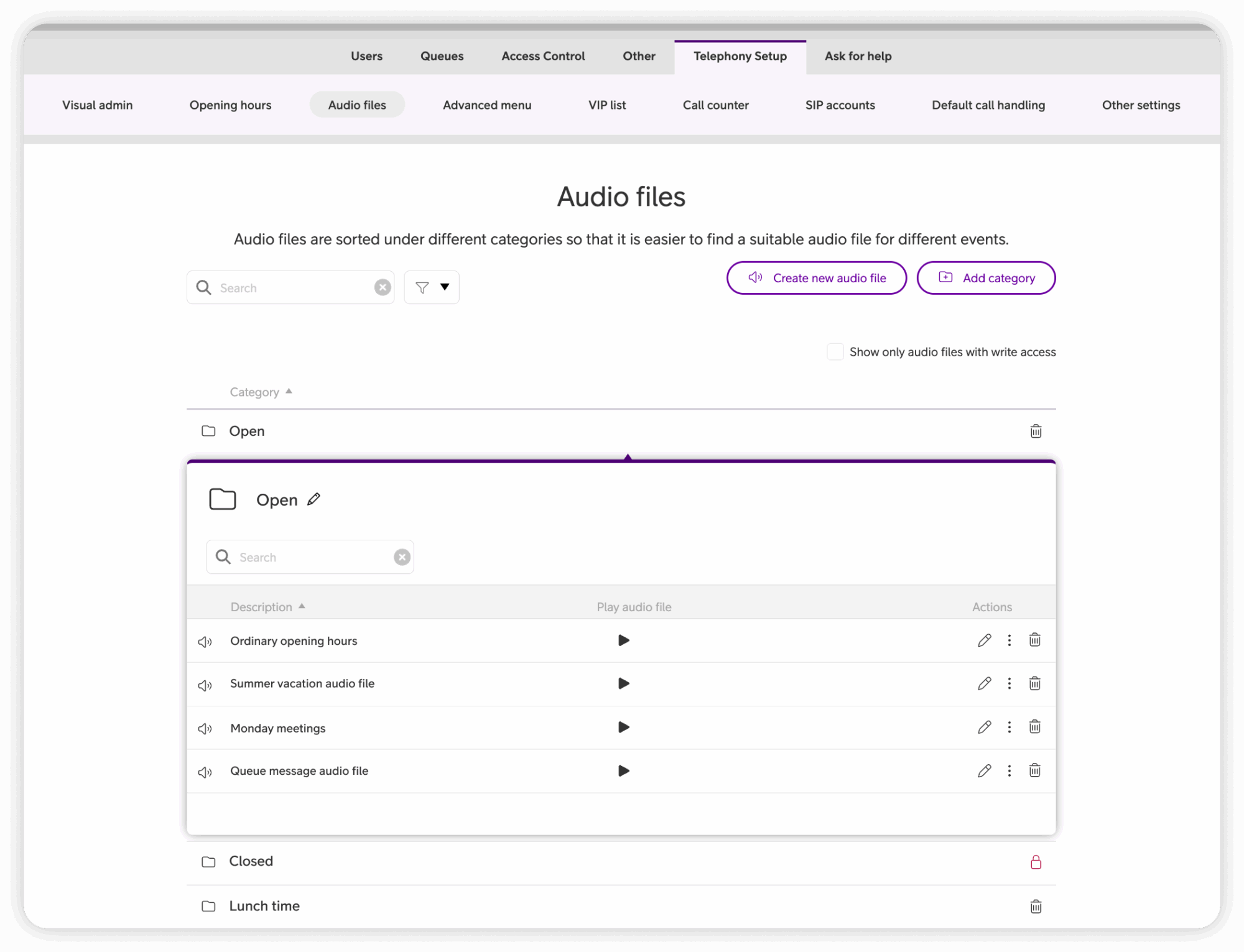
On desktop:
- Click the main menu ☰ in the upper left corner.
- Click Administration.
- Click Telephony Setup.
- Click Audio Files.
- Click Create new audio file.
- Choose your preferred method: Text to speech, Recording in web browser, Record by telephone, or Upload an audio file.
- Click Save.
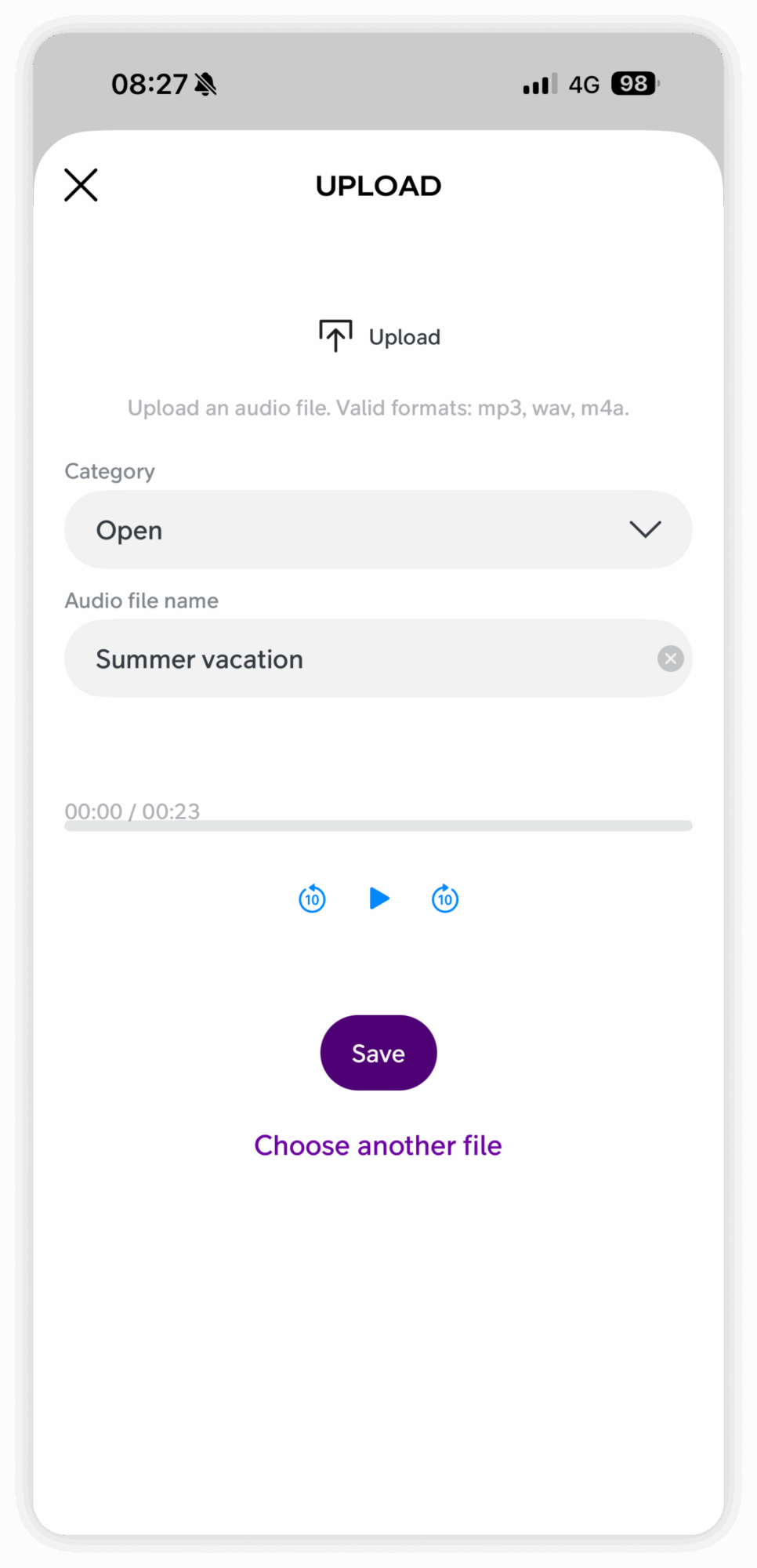
On the mobile app:
- Tap the main menu ☰ in the upper left corner.
- Tap Administrator.
- Tap Audio Files.
- Tap New audio file in the bottom navigation.
- Choose your method: Record, Text to speech, or Upload.
- Follow the steps for your chosen method, then tap Save.
Tip: Keep the message short and include the date you reopen. If you also close for New Year, consider one combined message covering the whole period so you only need to update it once.
How to create a Christmas exception in opening hours
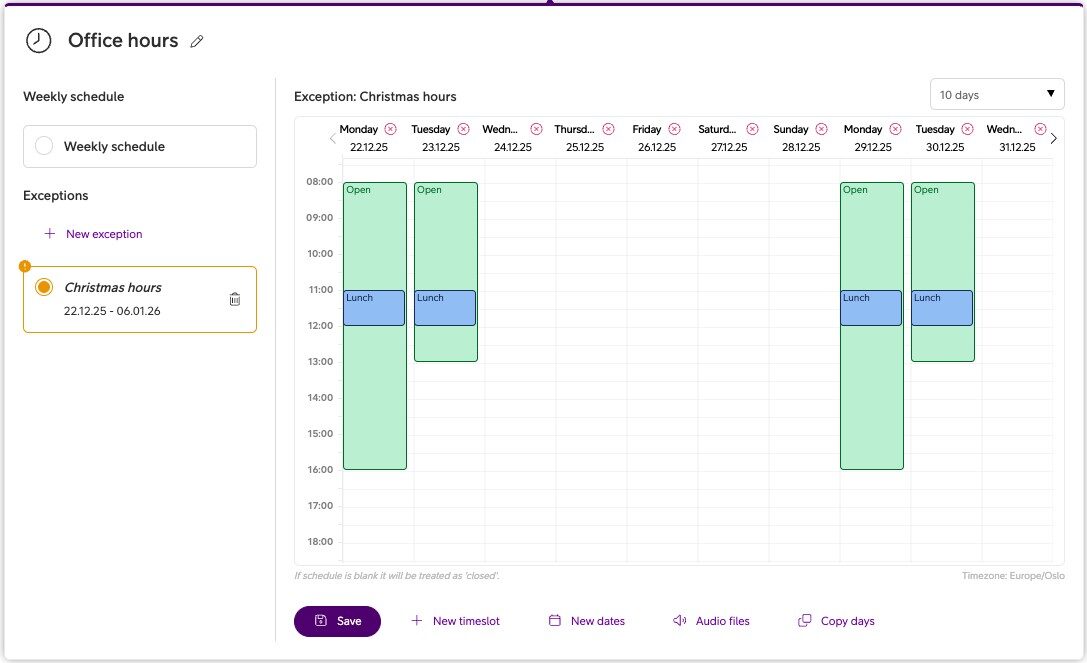
Instead of changing your standard weekly schedule, create an exception for the holiday dates. You can create one exception for the whole period, or separate exceptions for individual days such as Christmas Eve and New Year’s Eve when you are only open in the morning. Your regular schedule resumes automatically once the exception ends.
On desktop:
- Click the main menu ☰ in the upper left corner.
- Click Administration.
- Click Telephony Setup.
- Click Opening Hours.
- Select the opening hour you want to edit, or create a new one.
- Click + New exception.
- Give it a name (e.g. ‘Christmas 2026’).
- Select the From and To dates for the period.
- Define your custom hours for each day. Days left blank are treated as closed.
- Click Audio files and assign the relevant audio file to the Closed state.
- Click Save exception.
Note: In the Visual Administrator, set the Play audio file element to ‘Audio file is controlled by opening hours’ (Play audio file element → dropdown menu). The correct audio file then plays automatically for each opening hours status, and you can manage your audio files from the mobile app as well as on desktop. Read more in the Audio Files user guide.
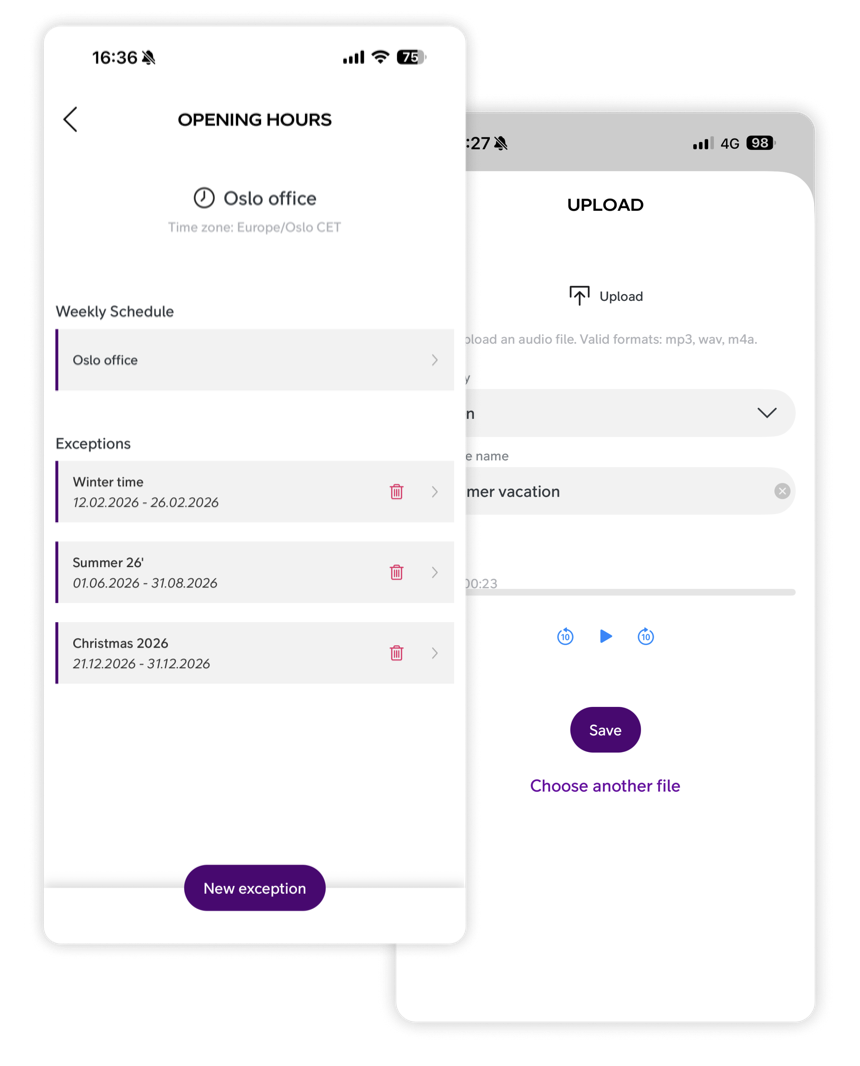
On the mobile app:
- Tap the main menu ☰ in the upper left corner.
- Tap Administrator.
- Tap Opening Hours.
- Select the opening hour you want to edit.
- Tap + New exception at the bottom of the screen.
- Enter a name for the exception and select the dates it should apply to.
- Tap Save.
- Open the exception, tap + at the bottom of the screen, then tap Audio files.
- Select the audio file for each relevant state (e.g. Closed).
- Tap Save.
2. Automate availability with calendar integration
Telia Smart Connect’s calendar integration syncs directly with Microsoft 365, so employee availability follows their real calendars. Over the holidays, when people take time off on different days between Christmas and New Year, this keeps calls flowing to colleagues who are actually working.
- Calls can be routed to an alternative team member when someone is away.
- Colleagues can see who is off over the holidays, which makes it easier to plan cover.
- If a team member is away, their calls can be forwarded to another colleague or an appropriate queue.
Tip: If you don’t have the calendar integration add-on, you can still sync with your mobile calendar in the Smart Connect mobile app. Read more in the blog post below.
Blog post: Read more about calendar integration
User guide: Learn how to set up calendar integration
User guide: Learn how to set up availability preferences
3. Update availability across devices
Ask everyone to update their availability in Smart Connect before they log off for the holidays, so calls are handled correctly from the first day off. This can be done from both the desktop and the mobile app.
- Set status to ‘Vacation’ or ‘Out of office’ to clearly signal unavailability.
- Forward calls to a colleague or queue so nothing goes unanswered.
- Remember to switch back after New Year, so you start receiving calls again when you return.
Tip: Updating availability from the mobile app takes seconds, so it is easy to adjust if holiday plans change at short notice.
User guide: Learn how to update your availability on mobile
User guide: Learn how to update your availability on desktop
Tips to prepare your communication setup for Christmas
- Map out the holiday calendar: List every red day and half day between Christmas Eve and New Year’s Day, and create matching exceptions in your opening hours.
- Record a holiday greeting: Wish callers a happy holiday, tell them when you are back, and point them to an alternative (such as email or your website) if relevant.
- Check your call flow: Make sure every state in your opening hours has a connected element in the IVR, including any lunch or custom states. If a state has no element, calls will default to the open path.
- Update availability: Make sure team members taking time off have updated their status and set call forwarding before they leave.
- Plan cover for the days in between: The working days between Christmas and New Year can be busy with few people in. Agree who covers which queues and when.
- Schedule a reset: Note who will check that everything is back to normal on the first working day of the new year.

Ready for the holidays?
A little preparation before the holidays means you can enjoy the break knowing your callers are met with a clear and friendly response. Set up your Christmas exceptions, record a holiday greeting, and make sure availability is correct across the team, and Smart Connect will take care of the rest.
For more detail on the features covered in this post, visit the user guides for Opening Hours (desktop), Opening Hours (mobile app), Audio Files (desktop), and Audio Files (mobile app). If you have questions or need help with your setup, get in touch with us.
Happy holidays from all of us at Telia Smart Connect!



Ready to connect?
Speak with one of our local sales offices today to learn more about the possibilities and opportunities Telia Smart Connect can bring to your team.
Connect with us