
Telia Smart Connect is also available as an app on both the App Store and Google Play. This means that you can access your switchboard on your mobile devices with just a few taps, making it even more convenient to have full control.




My Profile – Availability
The Availability settings lets you set your status and control what happens to incoming direct calls for each availability status. In the availability settings, you can:
- Show your availability status to colleagues in the company directory
- Leave a message on your user profile so colleagues know how long you will be out of the office
- Forward calls to other phone numbers, queues, or main numbers
Approach
- Click on your name at the top right to open your profile
- Go to the availability tab
The same settings can be found in the mobile app and personal switchboard:
Availability settings
1. General settings
My Profile > Availability > General Settings
Follow calendar
When enabled, your availability status in Telia Smart Connect will be determined by your calendar. If you have a meeting or appointment in your calendar, your status will automatically be set to the corresponding availability status.
Note: First you need to sync your calendar with Smart Connect. This is done either with the calendar integration or by syncing your calendar in the mobile app.
Always treat mobile calls as available
When enabled, all calls to your mobile number will follow the call settings for the Available status, regardless of your current status. Calls to your fixed number are not affected and will continue to follow the call settings for whichever status you are currently in.
Busy on both

When enabled, being in a call on any of your numbers (mobile, fixed, softphone or WebRTC) makes you busy on all of them. While you’re in a call:
- Direct calls to any of your numbers follow your “When busy” call settings for your current availability status.
- You won’t receive queue calls on your other numbers.
Note: For this to work as intended, set “When busy” in Call settings to where you want calls to go, for example voicemail or a colleague, for each availability status you use. See section 3, Call settings.
If “When busy” is set to “My phone”, or “Call first as usual to my phone” is turned on, calls are sent to your phone while you’re in a call. They only ring through if call waiting is turned on in your phone’s own settings. Otherwise the caller gets a busy signal.
If “Always treat mobile calls as available” is also enabled, calls to your mobile number follow the “When busy” setting for the Available status, whatever your current status is.
Set ring time before call forwarding
Defines how many seconds your phone will ring before the call is forwarded to voicemail or another destination you have configured.
Priority contacts
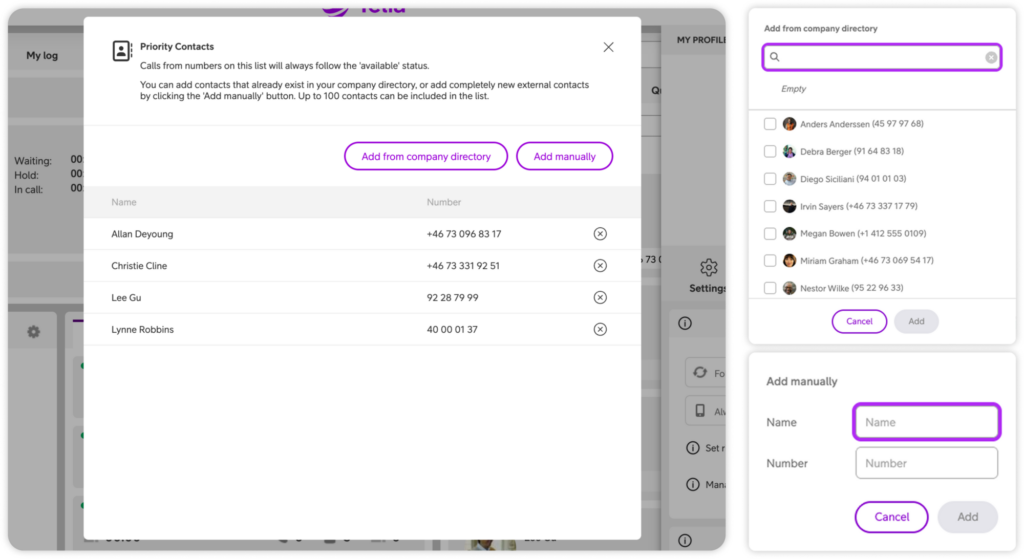
Priority Contacts lets you define a list of people who can always reach you, even if you have set up call forwarding or voicemail for your current status. All numbers added to this list will follow the call settings for the Available status.
You can add contacts from the company directory, or add numbers manually by entering the contact’s name and phone number.
2. Change status
My Profile > Availability > Change Status
Availability status
Use this setting to manually update your current availability. The available options include:
-
Available – You are free and reachable.
-
Meeting – You’re currently in a meeting.
-
Lunch – You’re on a lunch break.
-
Vacation – You’re away on vacation and unavailable.
-
Busy – You’re occupied and not able to respond.
-
Away – You’re temporarily away from your desk or workspace.
-
Gone for the day – You’ve finished work for the day.
Expires
Optionally set a date and time for when the status should expire. When the status expires, it will automatically revert to the default status (Available). Toggle the expiry on or off using the toggle next to the date field.
Note: It is not possible to schedule an availability status for the future in the availability module, as you only set an expiry time, not start time. The availability status will activate immediately. To schedule an availability status for the future, you must use either use the calendar integration or sync your calendar in the mobile app.
Message
Add a custom message to your availability status. This message is visible to colleagues in the company directory.
3. Call settings
My Profile > Availability > Call Settings
Call settings defines what happens to incoming direct calls for each availability status. You can redirect calls to a queue, a main number, colleague,, and configure separate announcements for calls depending on whether you are free or busy.
First, select the Availability status you wish to edit.
Note: Remember that you have to make the settings for each availability status.
When calling
Under “When calling”, decide what should happen to incoming direct calls, when you are in the selected availability status, and you are not in a call.
Decide where the call should go:
- My phone
- Voicemail
- Main number
- Queue
- Phone number
- Sound message
- Hang up
- My IVR
When busy
Under “When busy”, decide what should happen to incoming direct calls, when you are in the selected availability status, and you are in a call.
Decide where the call should go:
- My phone
- Voicemail
- Main number
- Queue
- Phone number
- Sound message
- Hang up
- My IVR
Call first as usual to my phone
Toggle on or off “Call first as usual to my phone”.
- If toggled on, the call will go to your phone first, and if you don’t pick up, it will be forwarded according to what you have chosen above.
- If toggled off, the call will be forwarded directly according to what you have chosen above, without trying to call your phone first.
Tip: If you use Busy on both and don’t want calls sent to your phone while you’re on a call, turn this off under “When busy”. If it’s on, the call only rings through if call waiting is turned on in your phone’s settings. Otherwise the caller gets a busy signal.
Settings before the call is connected
Under “Settings before the call is connected”, decide wether the callers should be notified when you are in this specific availability status.
- “Announcement” is a automatic voice stating that you are in the selected availability status, and when you will be reachable again (based on the expiration time you have selected).
- “Sound message” is your own recorded audio file. To record a new audio file, go to My Profile > Availability > Record Audio File.
4. Log out of queue on status change
My Profile > Availability > Log out of queue on status change
This setting automatically logs you out of all queues when you switch to specific availability statuses. For example, if you toggle it on for the availability statys Meeting, you will be logged out of all queues automatically when changing your availability status to Meeting.
If an expiry time is set and you want to be logged back into all queues after the status expires, enable the Automatic log in to queue after expiry toggle.
5. Record audio file
My Profile > Availability > Record Audio File
Record a personal audio file to use as sound message when in certain availability statuses. Audio files recorded here can be selected under Choose audio file in the Call Settings section (Section 3).
To record an audio file:
- Enter your phone number in the Phone number field.
- Click Dial. You will receive a call on that number.
- Record message.
- Hang up or press # when done.
Note: Only phone numbers from your solution can be used to record audio files.
6. My IVR
My Profile > Availability > My IVR
My IVR lets you give callers the choice between being connected to voicemail, the switchboard, or a colleague. Configure the following destinations:
- My switchboard: The switchboard queue your calls will be routed to.
- My queue: A specific queue your calls will be routed to.
- External switchboard: An external phone number to route calls to.
7. Reset to company default
My Profile > Availability > Reset to Company Default Settings
Clicking Reset will override any personalised settings with the default availability settings configured by your administrator.

FAQ
1. Q: How can I update my availability status in Telia Smart Connect?
A: You can update your availability status by clicking on My profile and then selecting the Availability section. From there, choose the appropriate status such as Available, Meeting, Lunch, Vacation, Busy, Away or Gone for the day. You can also set how long the status should remain active and add a custom message if needed.
2. Q: What availability statuses can I choose from?
A: You can choose from the following statuses:
-
Available – You are free and reachable.
-
Meeting – You’re currently in a meeting.
-
Lunch – You’re on a lunch break.
-
Vacation – You’re away on vacation and unavailable.
-
Busy – You’re occupied and not able to respond.
-
Away – You’re temporarily away from your desk or workspace.
-
Gone for the day – You’ve finished work for the day.
3. Q: Can I set a temporary availability status?
A: Yes. When you set a status, you can also specify how long it should remain active. After that time, it will revert to your default status automatically.
4. Q: What happens if I don’t set any availability status?
A: If you don’t set a status, the system will use your default availability settings. These can be configured in My profile and help ensure that colleagues know when you’re generally reachable.
5. Q: How can I add a message to my availability status?
A: When selecting a status in the Availability section, you can enter a short message (e.g., “At the dentist”). This message will be visible to colleagues who check your profile.
6. Q: Will my availability status affect how calls are routed to me?
A: Yes. Your availability status determines how incoming direct calls are handled. For each status you can configure where calls are routed — for example to voicemail, a colleague, a queue, or a main number — and whether callers hear an announcement before being connected.
7. Q: Can I see my colleagues’ availability status?
A: Yes, you can view the availability of your colleagues in the switchboard under the company directory.
8. Q: Is it possible to automate availability changes?
A: Yes. There are two ways to automate availability changes. If your organisation has the calendar integration add-on, your availability will sync automatically with your Microsoft 365 calendar. You can read more about it in the blog post here, or how to set it up in the user guide here. You can also sync your availability with your phone calendar directly in the Smart Connect mobile app, which is available to all users. You can read more about that here.
Here are the corrected questions with consistent formatting:
9. Q: How do I configure what happens to my calls when I’m in a specific availability status?
A: You can set call routing rules per status under Call settings. To do this:
- Go to My Profile > Availability > Call Settings.
- Select the availability status you want to configure.
- Under “When calling”, choose where calls should go when you are free — for example to your phone, voicemail, a queue, or a colleague.
- Under “When busy”, choose where calls should go when you are already on a call.
- Optionally, toggle on “Call first as usual to my phone” if you want your phone to ring before the call is forwarded.
- Click Save.
Note: You need to configure these settings separately for each availability status.
10. Q: How do I make sure I’m not receiving queue calls when I set my status to vacation or meeting?
A: You can configure Smart Connect to automatically log you out of queues when you change to certain statuses. To do this:
- Go to My Profile > Availability > Log out of queue on status change.
- Toggle on the statuses for which you want to be automatically logged out — for example Vacation or Meeting.
- If you want to be automatically logged back in when the status expires, enable the “Automatic log in to queue after expiry” toggle.
11. Q: How do I record a personal audio message to play to callers?
A: You can record a personal audio file that plays to callers before they are connected or forwarded. To do this:
- Go to My Profile > Availability > Record audio file.
- Enter your phone number in the Phone number field.
- Click Dial. You will receive a call on that number.
- Follow the instructions to record your message.
- Hang up or press # when done.
Once recorded, the file can be selected under “Sound message” in the Call settings section. Note: Only phone numbers from your solution can be used to record audio files.
12. Q: How do I make sure certain people can always reach me, regardless of my availability status?
A: You can use Priority contacts to define a list of people whose calls will always follow the call settings for the Available status, even if you are set to Busy, Meeting, or another status. To add a priority contact:
- Go to My Profile > Availability > General settings.
- Click “Manage priority contacts”.
- Search for and add contacts from the company directory, or add a number manually by entering a name and phone number.
13. Q: What is My IVR and how do I set it up?
A: My IVR gives callers a choice between being connected to voicemail, the switchboard, or a colleague, instead of going directly to one destination. To set it up:
- Go to My Profile > Availability > My IVR.
- Select a switchboard queue under “My switchboard”.
- Optionally, select a queue under “My queue” and/or enter an external number under “External switchboard”.
- Click Save.
Once configured, you can select “My IVR” as a call destination in your Call settings.
14. Q: How do I reset my availability settings to the company default?
A: To revert all your personalised availability settings back to the defaults configured by your administrator:
- Go to My Profile > Availability > Reset to company default settings.
- Click Reset.
Note: This will override all your personal settings and cannot be undone.
15. Q: Can I set my availability status in advance for a future date?
A: No, it is not possible to set a future availability status directly in the Availability module, as any status you set becomes active immediately and runs until the expiry time you choose. So if you, for example, are going on vacation next week, you cannot schedule that status to activate automatically from today.
However, there are two ways to achieve this using calendar sync:
- If your organisation has the calendar integration add-on, your availability will sync automatically with your Microsoft 365 calendar. Simply add the event to your calendar and make sure “Follow calendar” is enabled, and your status will update automatically when the event starts.
- If you are using the Smart Connect mobile app, you can sync your local phone calendar with Smart Connect and enable “Follow calendar”. Any events in your calendar will then automatically update your availability status.
To enable “Follow calendar”, go to My Profile > Availability > General settings and toggle on “Follow calendar”.
16. Q: How do I stop calls reaching my other number when I’m already in a call?
A: Use the Busy on both setting. To do this:
- Go to My Profile > Availability > General settings and toggle on “Busy on both”.
- Go to Call settings and select the availability status you want to configure.
- Under “When busy”, choose where calls should go while you’re in a call, for example voicemail or a colleague (not “My phone”).
- Toggle off “Call first as usual to my phone” under “When busy”.
- Click Save.
Note: Repeat steps 2 to 5 for each availability status you use. If “Always treat mobile calls as available” is enabled, also set “When busy” under the Available status, since that setting decides where calls to your mobile go.
User Guides
Here you can find user guides connected to the feature topic. If you can’t find what you are looking for here you might find it in our main user guide archive.
User Guides