
Telia Smart Connect is also available as an app on both the App Store and Google Play. This means that you can access your switchboard on your mobile devices with just a few taps, making it even more convenient to have full control.





Running a switchboard involves more than keeping calls flowing. Administrators decide who can change what, how important callers are handled, and how the team keeps track of performance. Telia Smart Connect includes several settings built for exactly this work. Most take only minutes to set up and save time every week after that.
1. Share the workload with role administration
Not every task needs a full administrator. A team leader may need to log colleagues in and out of queues, or adjust opening hours for their own department, without access to the rest of the solution. Role administration lets you give people exactly the access their work requires, and nothing more.
Smart Connect includes three system roles:
- Administrators: full access to the solution.
- Team leaders: access to manage their teams, such as logging members in and out of queues.
- Users: access to their own settings and everyday functionality.
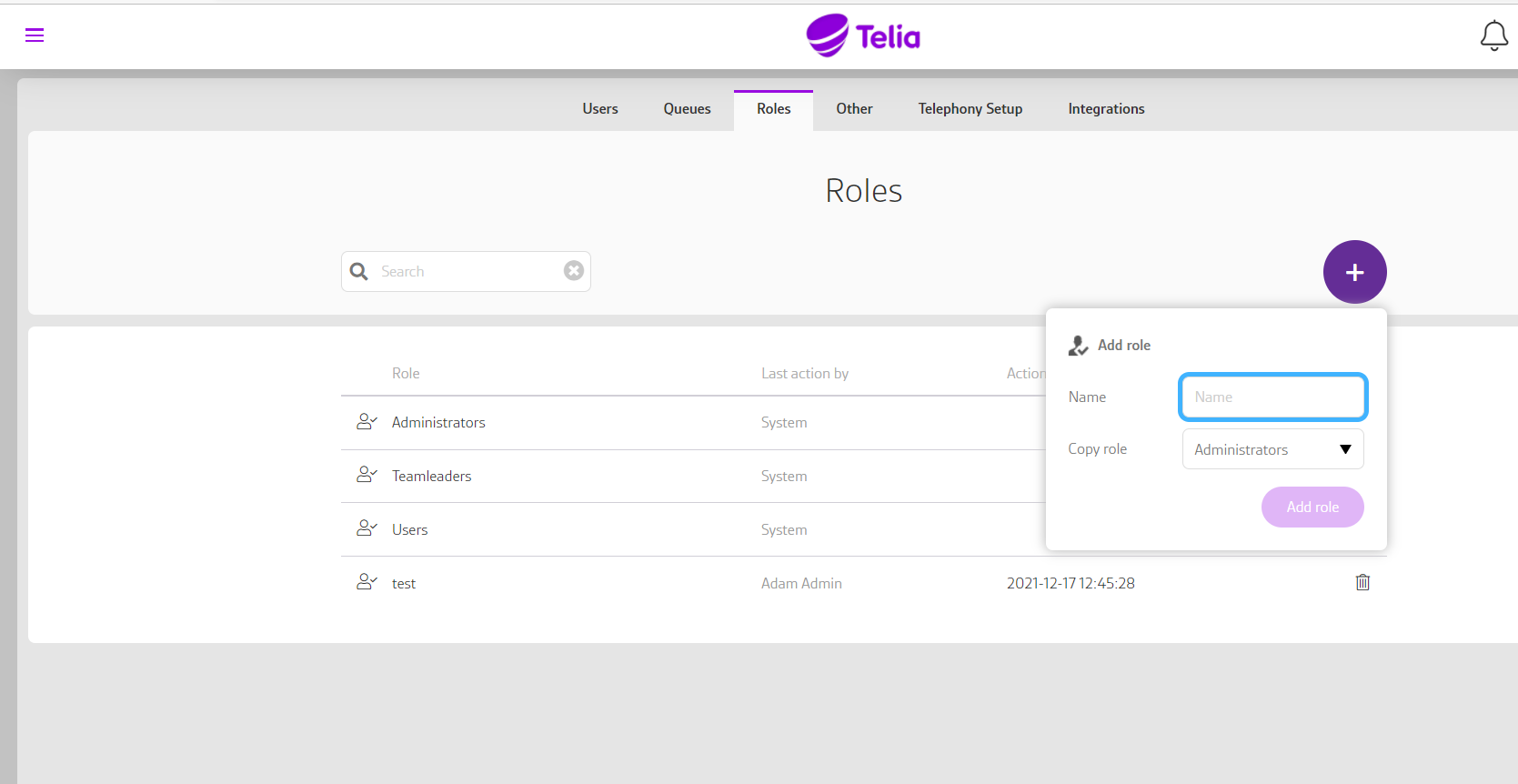
On top of these, you can create any number of customised roles by choosing which access levels each role should have. Advanced role settings go a step further and limit a role to specific data, such as certain queues, IVRs, opening hours, audio file categories, or main numbers.
Customised roles are created under Administration > Roles. For more info, check out the user guide Role Administration.
2. Decide who gets through with a VIP list
A VIP list filters calls to your main numbers based on the caller’s phone number. Callers on the list follow one path in the call flow, and everyone else follows another. That simple mechanism covers three quite different needs:
- Prioritise important callers: route key customers or partners to a priority queue, and apply specific service levels to them.
- Block unwanted calls: route listed numbers to an announcement or voicemail, or disconnect the call altogether.
- Control access to a dialed conference: place the VIP list in front of a dialed conference in the call flow, so only listed numbers can start it.
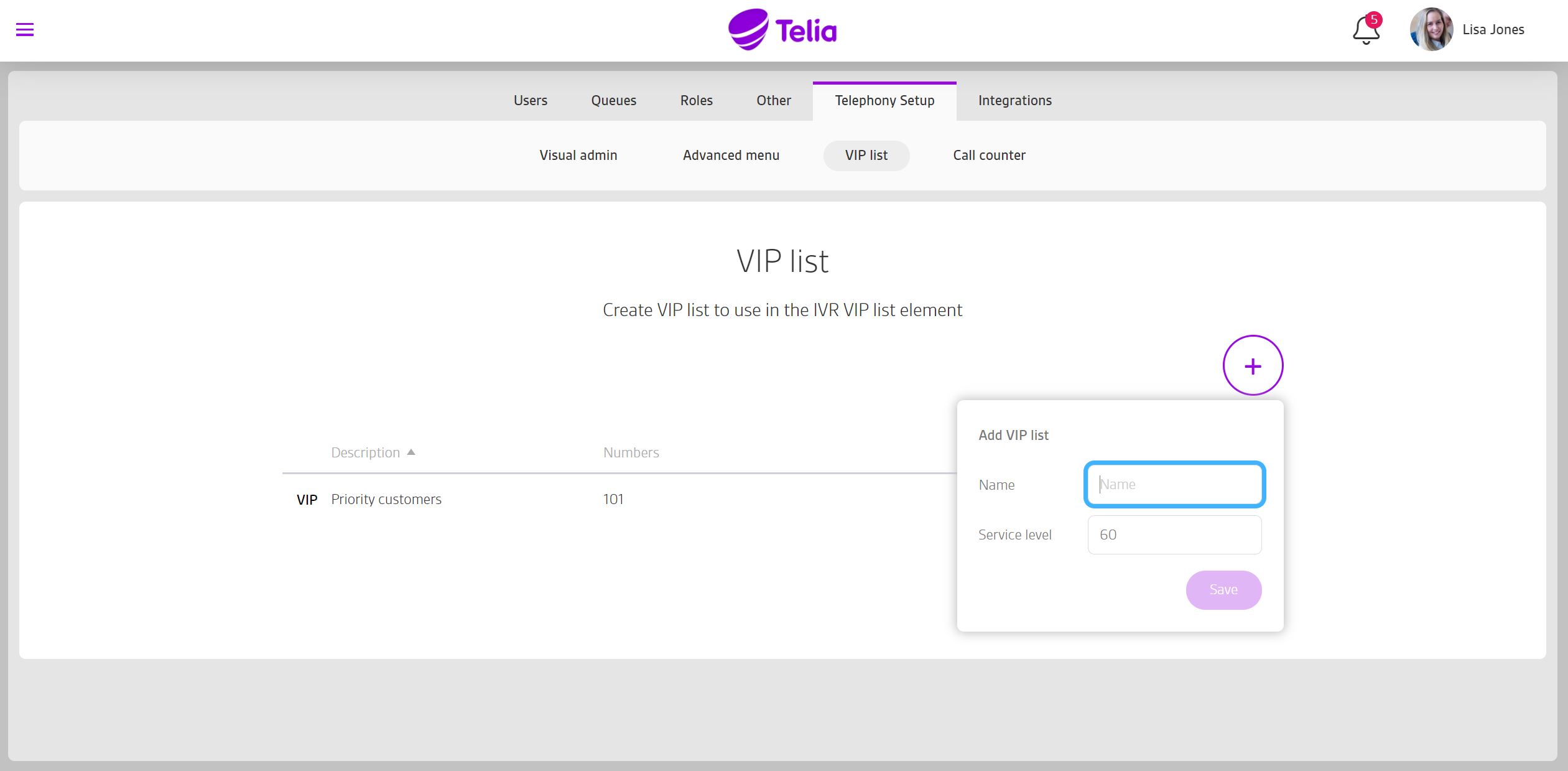
You can create several VIP lists and use them in different parts of your call flows. Calls that pass through a VIP list can also be followed up in the statistics module.
VIP lists are created under Administration > Telephony Setup > VIP list, and added to the call flow in Visual Administrator. For more info, check out the user guides VIP List and Visual Administrator.
3. Let the numbers come to you with scheduled reports
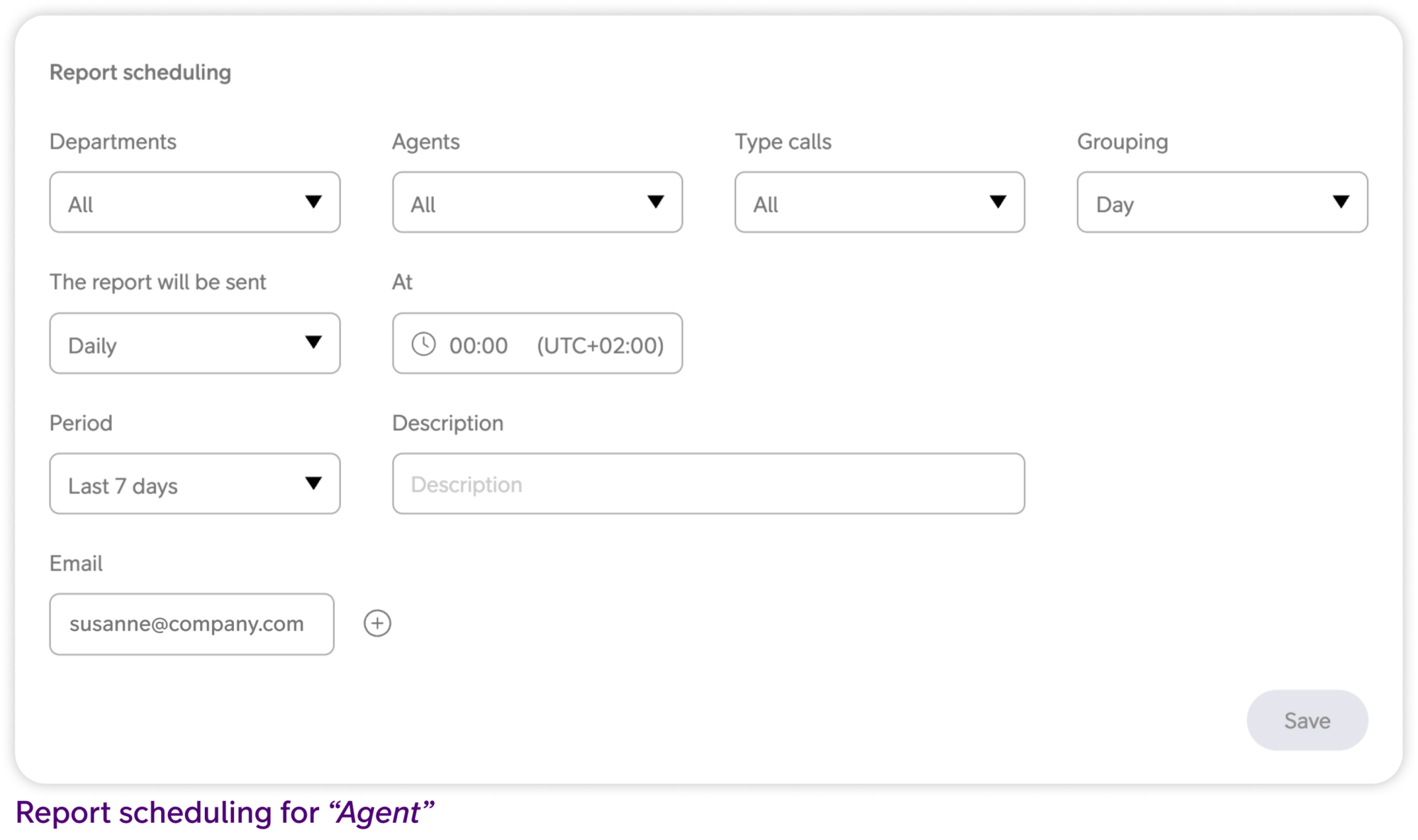
The statistics module gives you detailed reports on queues, agents, and calls. Opening them regularly takes discipline, though. Scheduled reports remove that step by sending the report you have set up to your inbox, or to anyone else who needs it, daily, weekly, or monthly. Access to the statistics module can also be given to individual users, such as team leaders, without making them full administrators. Access is not limited by team, though; anyone with access sees all statistics for the whole solution.
This is useful for:
- Following up on configured service levels: keep a steady record of how queues perform over time.
- Sharing results: send reports to managers and stakeholders who do not use Smart Connect themselves.
- Staying on top of trends: spot changes in call volumes or waiting times without having to look for them.
All reports can be scheduled, and every scheduled report is collected under Report Scheduling, where recipients can be added or removed.
For more info, check out the blog post Unlock powerful insights with statistics and reporting and the user guides Scheduled Reports and Queue Report.
4. Keep everyone informed with dashboards and wallboards
Reports show what has happened. Wallboards focus on the current status, but also show a look back at what has happened earlier in the day. Dashboards can combine both views, current figures and how they have developed over time.
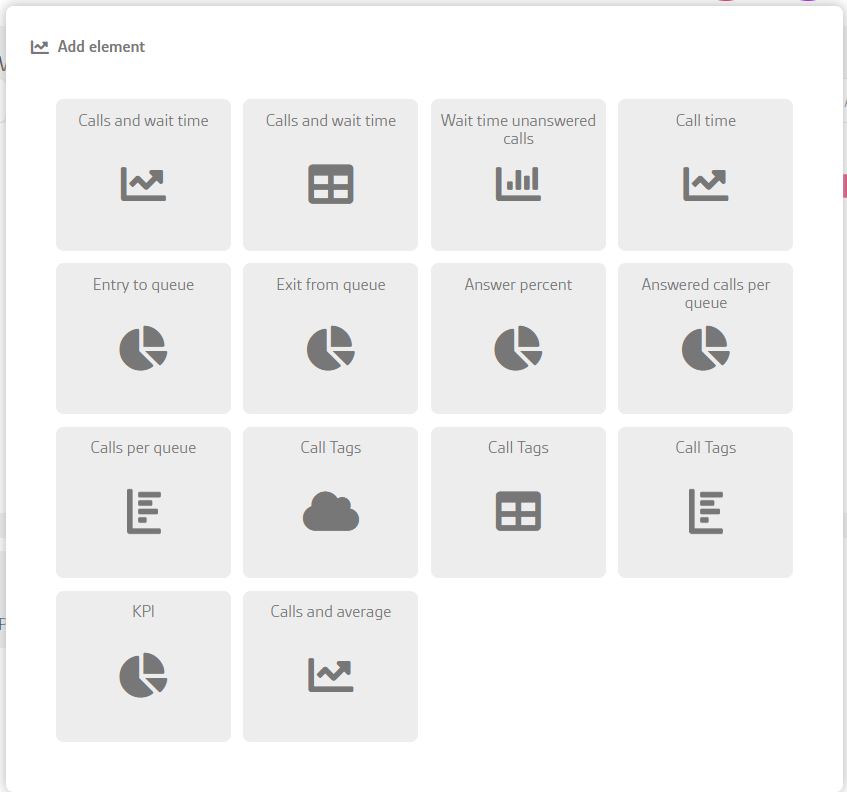
- Dashboard: an overview of key figures, built from elements such as response rate, waiting time for missed calls, and calls per queue. Every user with access to statistics can build their own.
- Wallboard: designed for a big screen in the office, showing the current status of selected queues so the whole team can see when things get busy.
Dashboards can also be shared. Each one has its own URL, so people who only need to view the figures can follow them without being able to edit anything, and the URL can be changed if access should be withdrawn.
Both are found under Statistics in the main menu. For more info, check out the blog post Unlock powerful insights with statistics and reporting and the user guides Dashboard and Wallboard.
Want to learn more?
Each of these settings reduces the manual work of running the switchboard, and they work well together. A VIP list feeds into your statistics, your statistics feed your dashboards, and role administration decides who can work with each of them. Get in touch with us if you would like to discuss how to set them up for your organisation.
Looking for tips for everyday users? Read Tips and tricks: four settings that make your workday easier.



Ready to connect?
Speak with one of our local sales offices today to learn more about the possibilities and opportunities Telia Smart Connect can bring to your team.
Connect with us