
Telia Smart Connect is also available as an app on both the App Store and Google Play. This means that you can access your switchboard on your mobile devices with just a few taps, making it even more convenient to have full control.





Calls don’t always arrive at convenient times. Meetings run long, important customers call while you are already on the phone, and updating your availability status is easy to forget on a busy day. Telia Smart Connect has a few settings built for exactly these situations. Set up once, they keep calls moving in the background without further effort.
1. Give callers a professional alternative with My IVR
When you are unavailable, calls normally go to one place: voicemail, a colleague, or a queue. My IVR does something different. It gives the caller a choice, so they can decide whether the matter can wait for your voicemail or needs someone else right now.
For customers and partners calling in, this is the difference between reaching a dead end and being offered a way forward. Instead of leaving a message and hoping for a reply, they are guided to the switchboard or the right team and helped the same day. It signals that the organisation is reachable even when an individual is not.
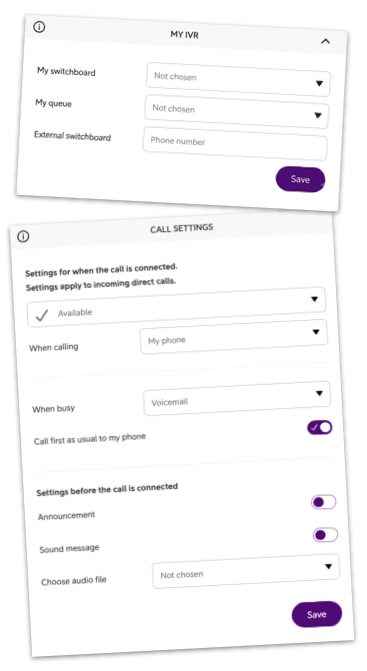
You configure up to three destinations:
- My switchboard: the switchboard queue your calls are routed to.
- My queue: a specific queue, for example your closest colleagues, that your calls are routed to.
- External switchboard: a phone number to route calls to.
Once set up, My IVR becomes available as a call destination in your call settings, alongside options such as voicemail and phone number.
For more info, check out the blog post Availability: Control when and how to be reached and the user guides My Profile – Availability and Mobile App – Availability.
2. Let the right people through with Priority contacts
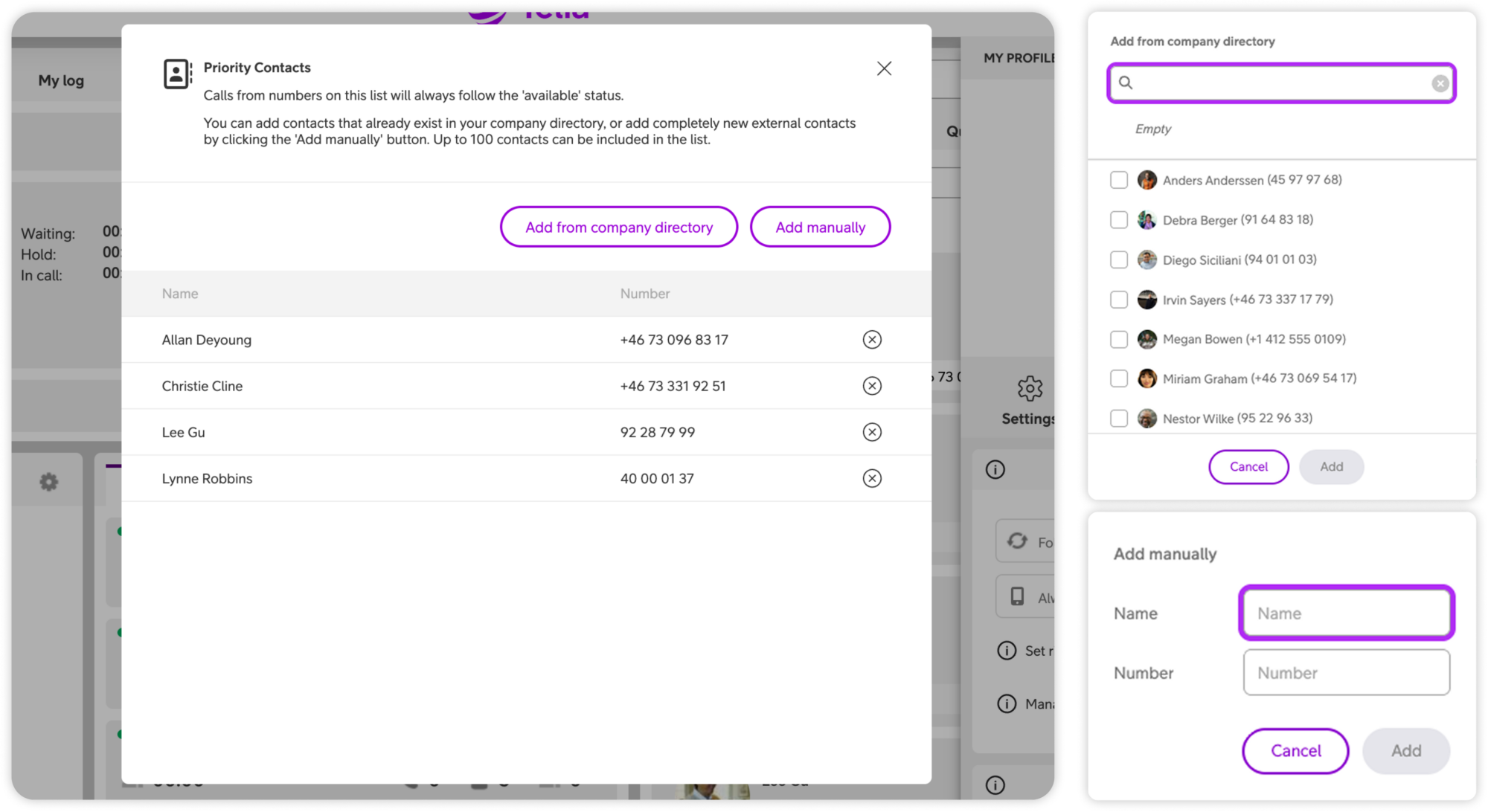
Forwarding calls to voicemail during a meeting is useful, until the one call you did want comes in. Priority contacts solves that. It is a list of people whose calls always follow your call settings for the Available status, no matter which status you are currently in.
Typical additions are your manager, a key customer, a project owner, or anyone whose call you would rather take than return.
Good to know: the list applies across all your availability statuses. You set it once, and it keeps working whether you are in Meeting, Busy, or Vacation etc.
Check out the user guide for more info My Profile – Availability.
3. Let your calendar set your availability
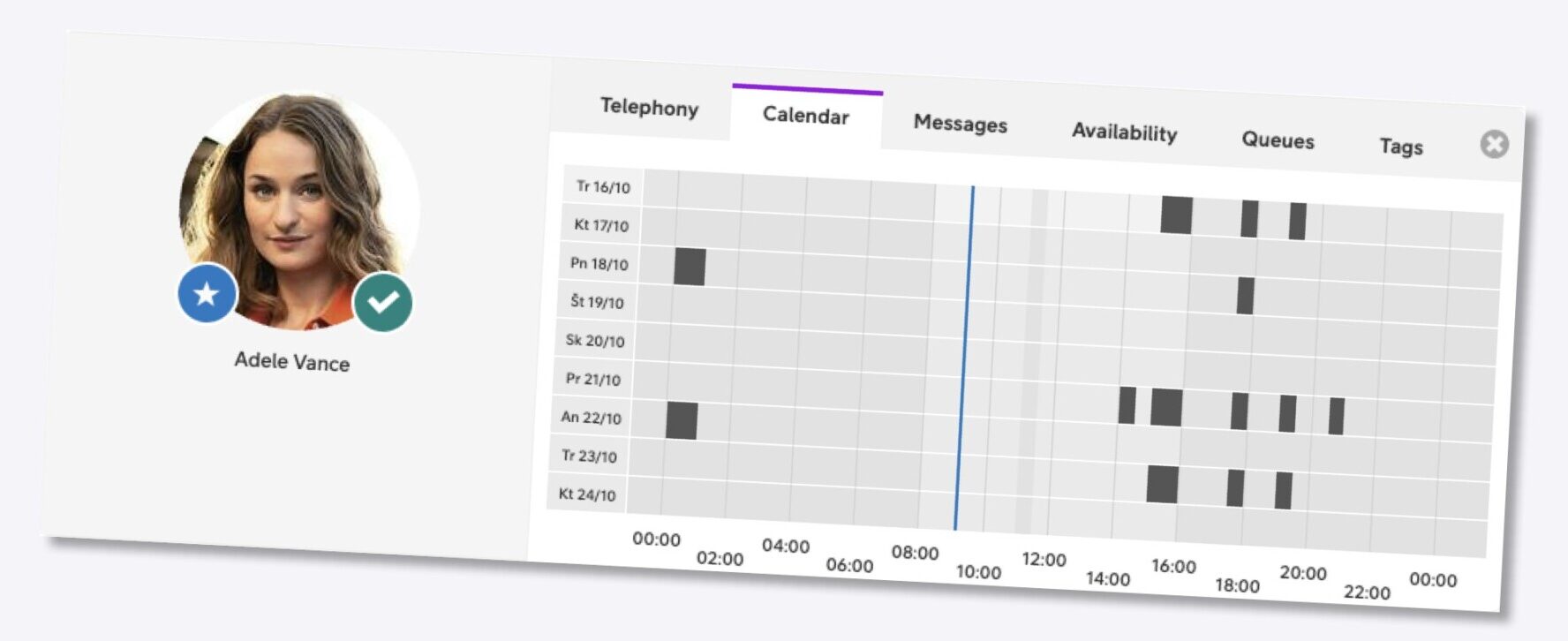
Keeping your status accurate takes discipline. Calendar sync removes that step: your availability updates itself based on what is already in your calendar.
There are two ways to do this.
Calendar sync in the mobile app (included for all users)
In the Smart Connect mobile app, you can connect and sync your availability status with your phone calendar. This is available to everyone, and is not something that your organisation is charged extra for.
Calendar integration (add-on)
Smart Connect can also sync availability with events from your Microsoft 365 calendar, updating your status automatically from meetings, lunches, and out of office entries. This keeps your status consistent across tools without going through the app. It is an add-on that your organisation adds and the administrator sets up, so check with your local sales representative for more information.
Read more about this in the blog post Calendar integration: Syncing your schedule for better call management and the user guides Calendar Integration and Mobile App – Availability.
4. Get a group on a call, planned or on the spot
Smart Connect includes two ways of getting several people onto the same call. They work differently, and each suits a different kind of meeting.
There are two ways to do this.
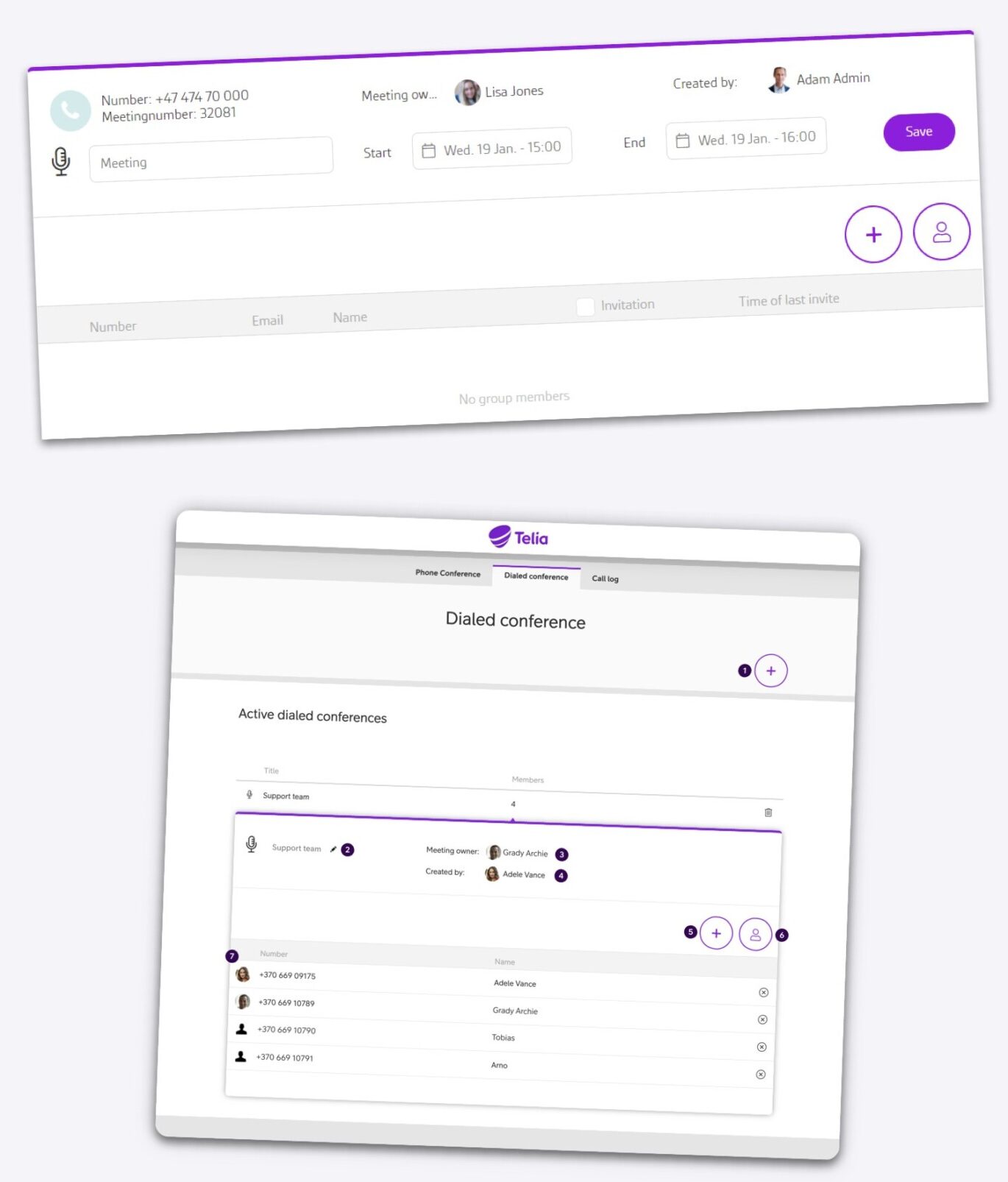
- Scheduled phone conferences are planned in advance. Participants receive the number to call and a password by SMS or email, and join at the agreed time. Any user can create one.
- Dialed conferences work the other way round. The system calls the participants and connects them directly, with nothing for them to dial or remember. These are set up in advance by an administrator and then started on demand, which makes them suited to urgent situations: a technical issue that needs the right people on a call now, a shift handover, or a group that is called together regularly.
Explore more about phone conferences in the blog post The business benefits of seamless phone conferencing and the user guide Phone Conference.
Want to learn more?
Each of these settings takes a minute to configure and keeps working in the background. Check out the blog posts and user guides for more info, or get in touch with us if you would like to discuss how to set them up across your organisation.
One last tip, check out the mobile app and its onboarding flow – it is a quick way to cover the basics. It appears the first time you log in to the mobile app, and you can return to it whenever you like through the settings on the home screen.



Ready to connect?
Speak with one of our local sales offices today to learn more about the possibilities and opportunities Telia Smart Connect can bring to your team.
Connect with us