
Telia Smart Connect is also available as an app on both the App Store and Google Play. This means that you can access your switchboard on your mobile devices with just a few taps, making it even more convenient to have full control.




Mobile App – Home Screen & My Profile
On the home screen you can tailor the layout to suit your needs, and My Profile enables easy access to key settings.
In the Home Screen and My Profile you can:
- Manage language and regional settings.
- Administrate calling and security settings.
- Walk through the onboarding flow.
- Tailor the Home Screen layout for easy access to your most important features.
- Access the News Bell for the latest updates from Telia.
Quick settings
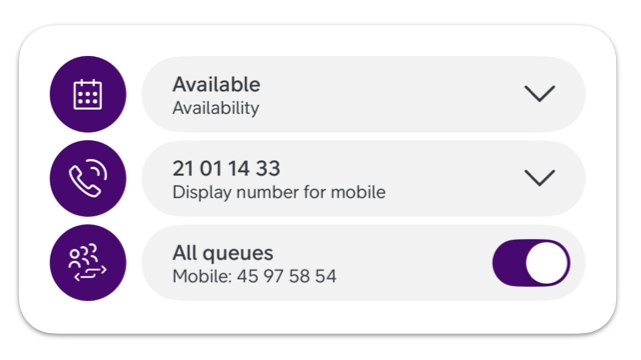
Directly on the home screen there are three settings available with drop downs for quick access.
- Tap the Availability dropdown to quickly change your availability.
- Tap the Display number dropdown to quickly change your display number.
- Tap the Queue toggle to log in/out of queues (click Edit shortcuts to add dropdowns for specific queues).
Shortcuts
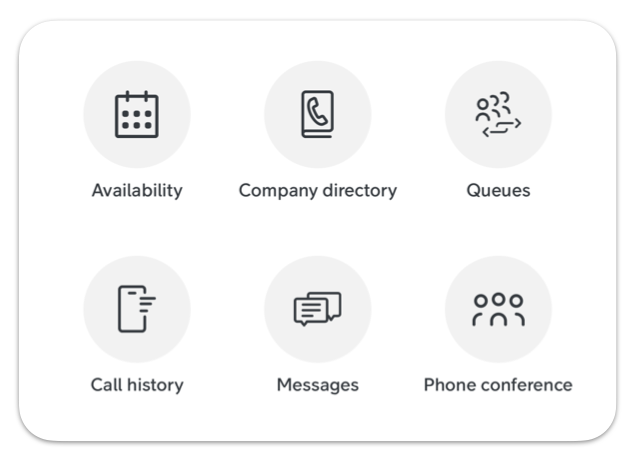
Shortcuts give you fast access to specific features of the app, instead of having to go through the main menu. Tap any shortcut to open that feature directly.
To choose which shortcuts appear on the home screen, tap Edit shortcuts at the bottom of the screen.
Available shortcuts:
- Availability
- Company directory
- Queues
- Call history
- Messages
- Callback
- Administrator
- Number search
- Phone conference
- Unanswered queue calls
- Favorites
- Contacts
- Number routing
My profile
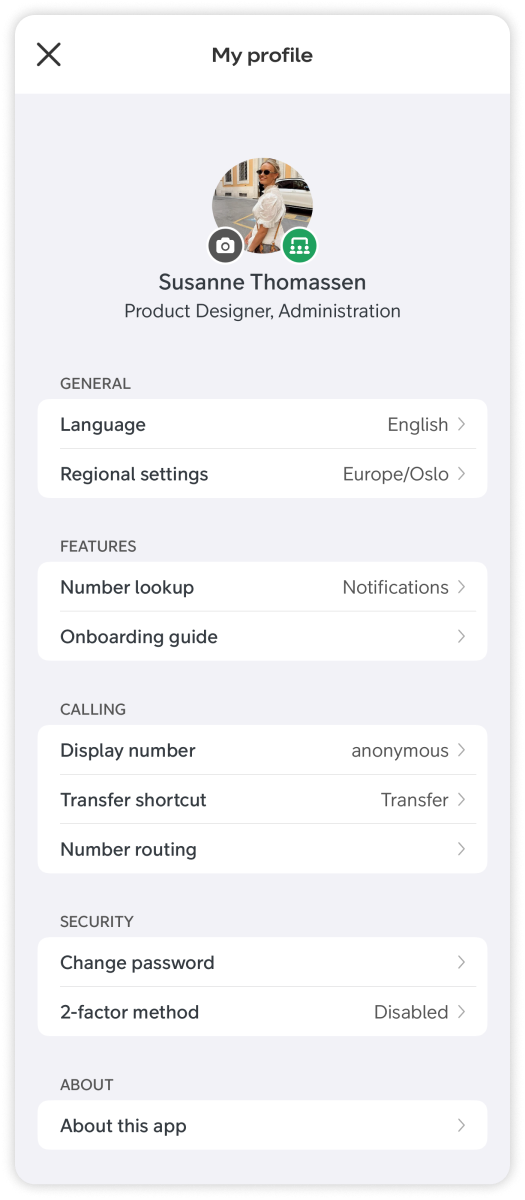
To open My profile, tap your profile image or the cog wheel ⚙ at the top of the home screen. From here you can access a wide array of settings:
General
Language
Choose the language of the app. Available languages: English, Swedish, Finnish, Norwegian, Lithuanian, and Estonian.
Regional settings
Adjust how numbers and times are handled.
- Toggle Show international prefix on or off.
- Select your time zone.
Features
Number lookup
Turn on Push notifications and Call identification to get the full experience of the number lookup function. Read more in the Mobile App – Number Lookup user guide.
Onboarding guide
The onboarding guide that’s presented the first time the app is opened, is also available to revisit here in “My profile”. Click to go through the onboarding guide again.
Calling
Display number
Select what display number to use for your devices, for example mobile, fixed, or softphone.
With Time Management Mobile, you can specify that the selected Caller ID is used only during the defined opening hours. Outside of these hours, your standard Caller ID will be displayed for all outgoing calls.
Transfer shortcut
Choose what transfer shortcut to show when you are in a call, open the company directory, and want to transfer a call to a colleague. Available options:
- Transfer: Sends the call straight to the colleague. If they don’t answer, the call returns to you.
- Transfer no return: Sends the call straight to the colleague. If they don’t answer, the call does not return to you.
- Assisted transfer: Lets you speak to the colleague first, before connecting the caller.
Number routing
If you have several numbers, toggle on or off what devices each number should call on. You can also access this setting via the Number routing shortcut on the home screen if you have it added.
Security
Change password
Tap to set a new password, or to reset a forgotten one. You can also reset your password from the login screen if you’re having trouble signing in.
2-factor method
Choose what 2-factor method to use when signing in: Code by SMS, Code by Email, or Authenticator app.
About
About this app
See what app version you are on. Tap Third party libraries to see all third party libraries used in the app.
News bell
In the top right corner of the home screen you’ll find the news bell. Tap it to see updates, new features, and recent events related to Smart Connect.
FAQ
Q: Where do I find my profile settings?
A: Open the home screen and tap your profile image or the cog wheel ⚙ at the top.
Q: How do I change the language of the app?
A: Tap your profile image or the cog wheel ⚙ at the top of the home screen, then tap Language and choose between English, Swedish, Finnish, Norwegian, Lithuanian, or Estonian.
Q: How do I change which number is shown when I call someone?
A: You have two options. From the home screen, use the Display number dropdown on the home screen, or go to profile settings and tap Display number.
Q: How do I add or remove shortcuts on the home screen?
A: Tap Edit shortcuts at the bottom of the home screen and choose which shortcuts you want to see.
Q: How do I log in or out of a queue from the home screen?
A: Use the queue toggles on the home screen to switch each queue on or off. You can change what queues to be displayed here by clicking Edit shortcuts.
Q: How do I switch my 2-factor method?
A: Open profile settings and tap 2-factor method. Choose between Code by SMS, Code by Email, or Authenticator app.
Q: What’s the difference between Transfer, Transfer no return, and Assisted transfer?
A: Transfer sends the call straight through, and the call returns to you if the colleague doesn’t answer. Transfer no return sends the call straight through, and the call does not return to you. Assisted transfer lets you speak to the colleague first, before connecting the caller. For more on call transfers, see the Mobile App – Call Transfer user guide.
Q: Why should I turn on push notifications and call identification?
A: They are needed for the number lookup function to work fully, so the app can identify callers and notify you about them. Read more in the Mobile App – Number Lookup user guide.
Q: What is number routing and where do I manage it?
A: Number routing controls which of your devices ring when you receive a call to each of your numbers. Manage it from profile settings → Number routing, or tap the Number routing shortcut on the home screen if you have it added.
Q: Where do I see updates and news about Smart Connect?
A: Tap the news bell in the top right corner of the home screen.
Q: Where can I see what version of the app I’m on?
A: Open profile settings and tap About this app.
User Guides
Here you can find user guides connected to the feature topic. If you can’t find what you are looking for here you might find it in our main user guide archive.
User Guides