
Telia Smart Connect is also available as an app on both the App Store and Google Play. This means that you can access your switchboard on your mobile devices with just a few taps, making it even more convenient to have full control.





Your availability status makes it easy to communicate whether you are free, busy, or away – and helps ensure that calls reach the right person at the right time. With a few settings, you can tailor how availability support and streamline your workday.
What availability is
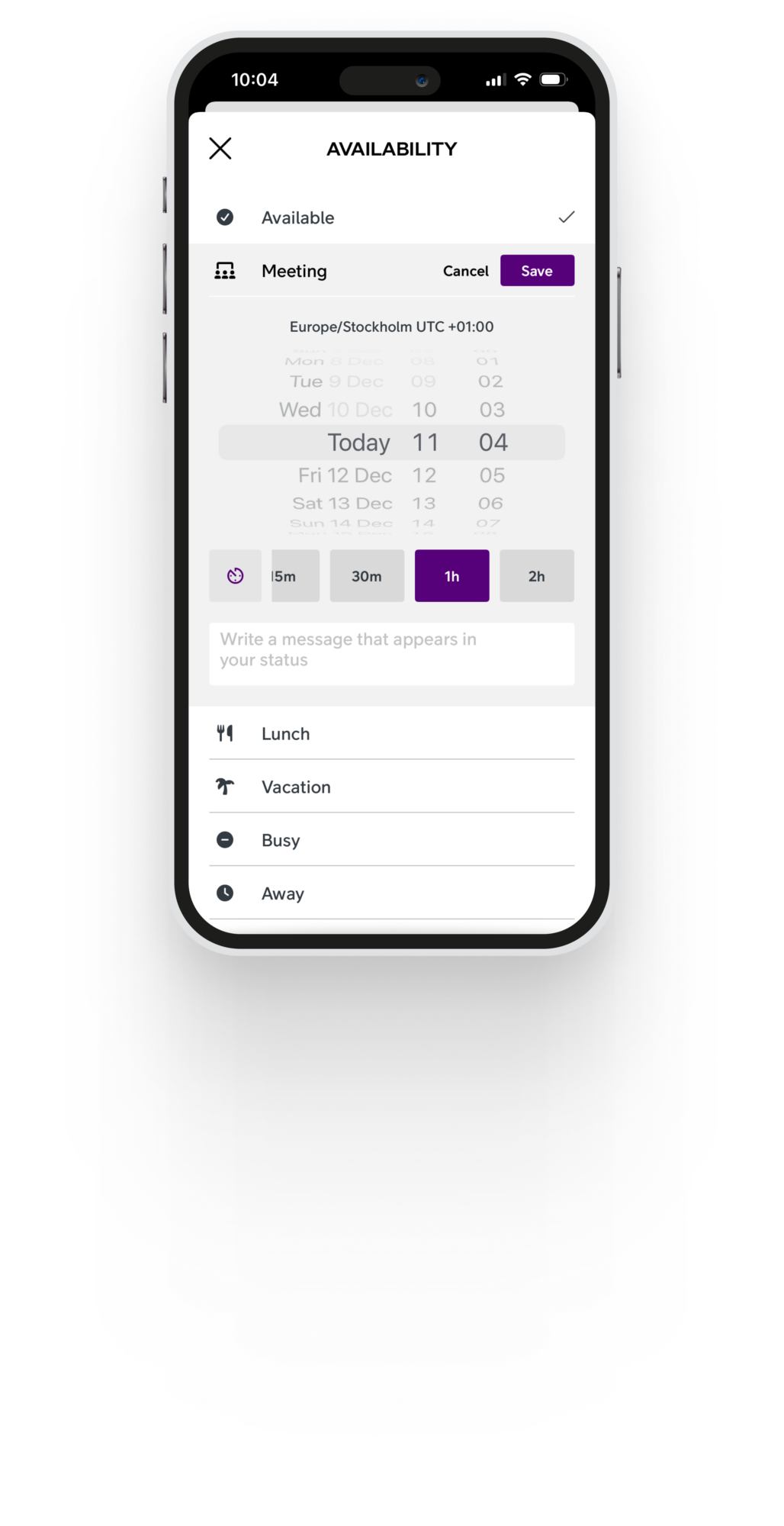
Availability is your personal presence status in Smart Connect, indicating to your colleagues whether you are:
- Available – You are free and reachable.
-
Meeting – You’re currently in a meeting.
-
Lunch – You’re on a lunch break.
-
Vacation – You’re away on vacation.
-
Busy – You’re occupied and not able to respond.
-
Away – You’re temporarily away from your desk or workspace.
-
Gone for the day – You’ve finished work for the day.
Your status appears in the company directory, making it easier for colleagues to know when to reach you. It can also be communicated towards incoming callers, making it clear when they can expect to hear from you.
How to set availability
Availability in Smart Connect can be updated directly in both the desktop version and the mobile app, making it easy to keep your status accurate throughout the day.
-
Desktop: Go to My Profile → Availability to choose a status, add a message, and set how long the status should remain active.
-
Mobile app: Open the Availability menu from the home screen or main menu (≡) to select a status, add a message, and set the expiration time.
- Calendar sync: Enable Smart Connect to sync with your calendar to automatically set your availability status. More about how to do this further down.
Essential settings for full control
Smart Connect is designed to be flexible, which means you can tailor how availability works for you. To do so it is crucial to consider a few key settings to control how incoming direct and queue calls are managed, depending on your availability status.
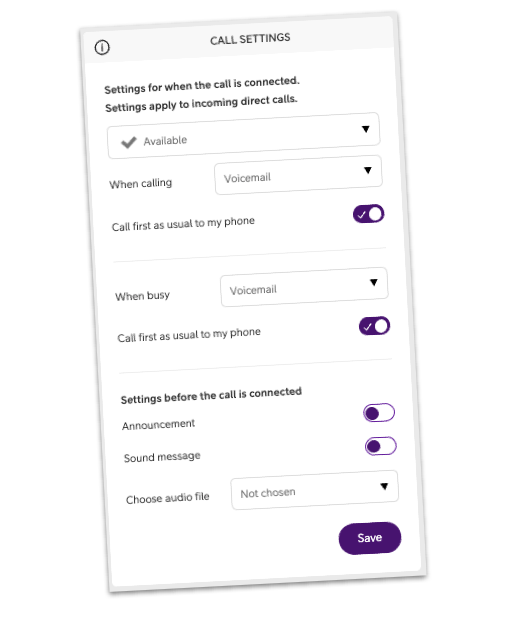
1. Set call forwarding rules for direct calls
You can set how incoming direct calls should be managed in each availability status.
This is done by going to:
- Desktop: My Profile -> Availability -> Call settings
- Mobile: Main menu -> Availability -> Availability settings
Example setup:
-
Meeting -> Forward to personal voicemail
-
Vacation -> Forward to colleague
This makes sure callers always reach the right place.
2. Decide when to receive queue calls
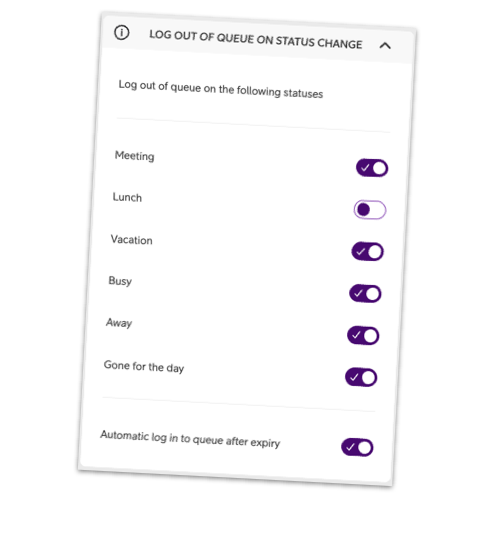
To not receive queue calls when changing availability status, you need to enable the setting “Log out from queue on status change”.
This is done by going to:
- Desktop: My Profile -> Availability -> Log out of queue on status change
- Mobile: Main menu -> Availability -> Log out of queue on status change
Example setup:
-
Log out: Meeting, Vacation, Busy, Away, Gone for the day
-
Stay logged in: Lunch
This setup would ensure that you still receive queue calls when on lunch, so that no call go unanswered.
3. Always treat mobile calls as available
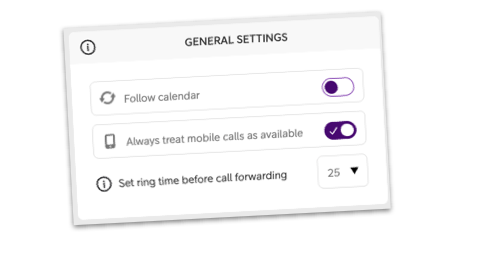
If you have two numbers, a mobile and a fixed, you may want calls to your mobile number to always go through. When enabling this, all calls towards your mobile number will follow the call settings for status Available. Calls to your fixed number will not be affected and will follow the call settings for the status you currently are in.
To toggle on Always treat mobile calls as available:
- Desktop: My Profile -> Availability -> General settings -> Always treat mobile calls as available
- Mobile: Main menu -> Availability -> Always treat mobile calls as available
Automate your availability management
In addition to manually set your status in the availability module, you can sync your calendar to automatically update availability. This can be done in two ways:
Calendar integration (add-on)
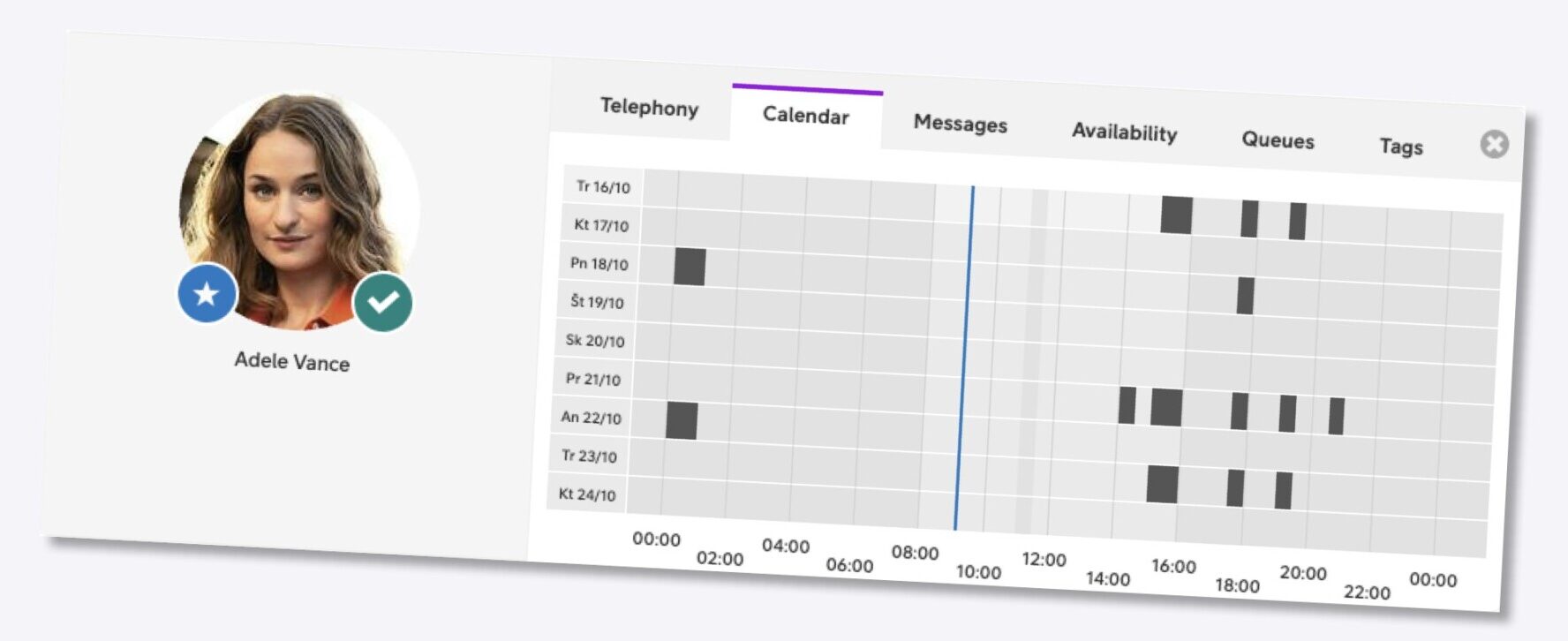
Smart Connect can sync availability with events from your Microsoft 365 calendar. When enabled, your availability is updated automatically based on your calendar entries, such as meetings, lunch and out of office. This reduces the need for manual updates and keeps your status consistent across tools.
This is an add on that your organisation need to add to the subscription. Check with your local sales representative for more information.
To read more about the calendar integration and how to set it up, check out the user guide here and blog post here.
Calendar sync (included for all)
In the Smart Connect mobile app, you can connect and sync your availability status with your phone calendar. This is available to everyone, and is not something that your organisation is charged extra for.
To set this up, open the Smart Connect mobile app:
- Click ≡ in the top left corner to view the main menu, and click on Availability.
- Scroll down and click Synchronize calendar.
- Toggle on.
- Select what calendar(s) to sync with.
After that you need to navigate to Follow availability from calendar:
- Click ≡ in the top left corner to view the main menu, and click on Availability.
- Scroll down to Follow availability from calendar.
- Toggle on.
Want to learn more?
Smart Connect gives each organization the freedom to tailor how availability and call handling should work together. To learn more, check out the user guides below.
Availability – Desktop:
Availability – Mobile:
Calendar integration:



Ready to connect?
Speak with one of our local sales offices today to learn more about the possibilities and opportunities Telia Smart Connect can bring to your team.
Connect with us