
Telia Smart Connect is also available as an app on both the App Store and Google Play. This means that you can access your switchboard on your mobile devices with just a few taps, making it even more convenient to have full control.




Wallboard
With wallboards, key statistics can be displayed on large screens on the premises, for example to give employees who staff the company’s queues a quick and easy overview of the current status.
- A detailed view supports displaying up to seven queues at the same time.
- When multiple queues are selected, the queue display will rotate.
- The detailed view can be coupled with key figures and alternate every twenty seconds.
Getting started
Follow these steps to set up a wallboard:
- Click the main menu in the upper left corner.
- Click Statistics.
- Click Wallboard
- Click the plus sign.
- Enter a name for the wallboard
- Select the queues you want to include.
- Click Add.
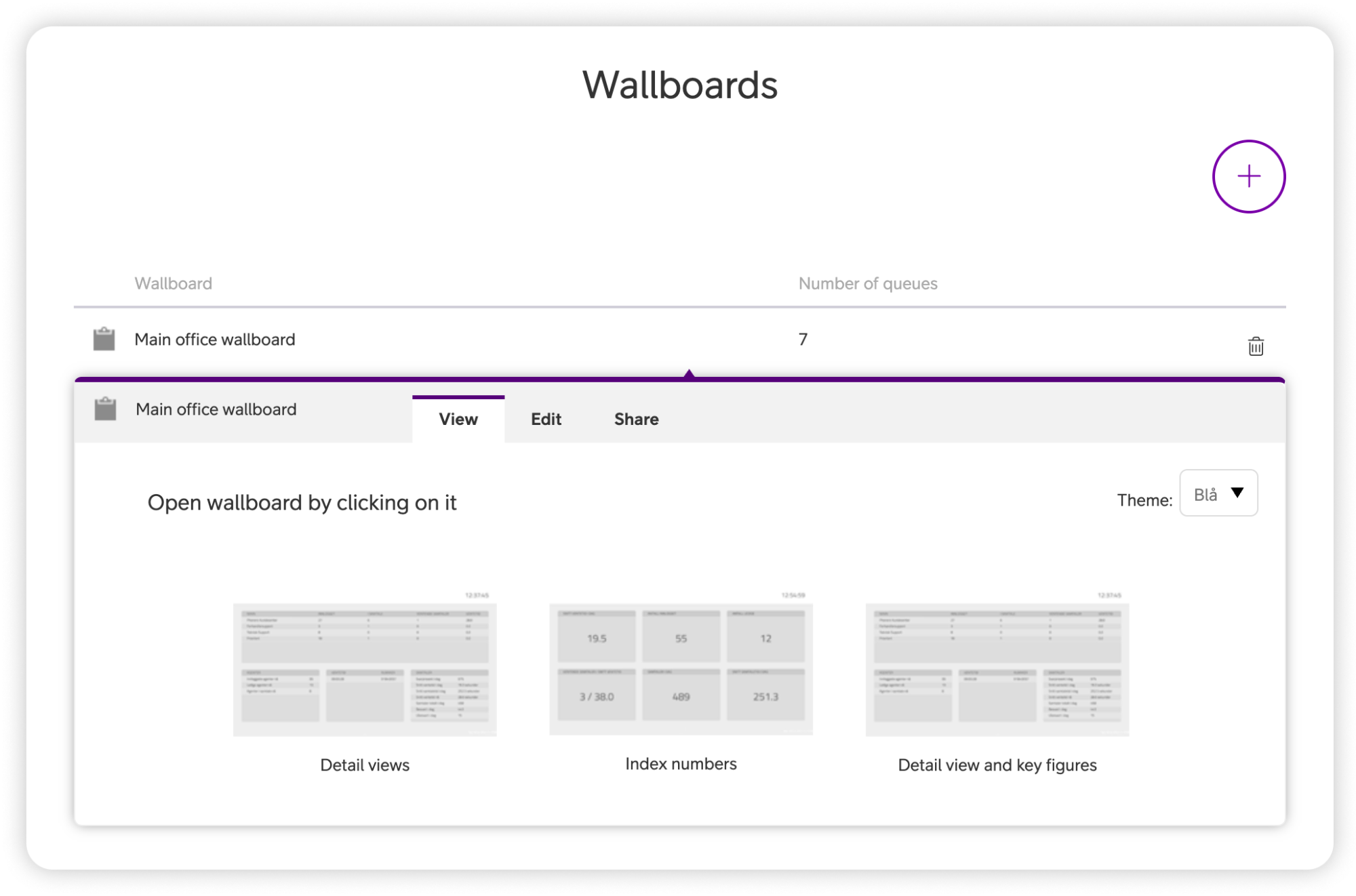
- Click the newly created wallboard in the list.
- Open the wallboard by selecting the layout. You can choose between these three: Detail views, Index numbers, Detail view and key figures.
You can edit the color by changing the theme of the wallboard. To do this, click the dropdown menu: Theme.
Share link to wallboard
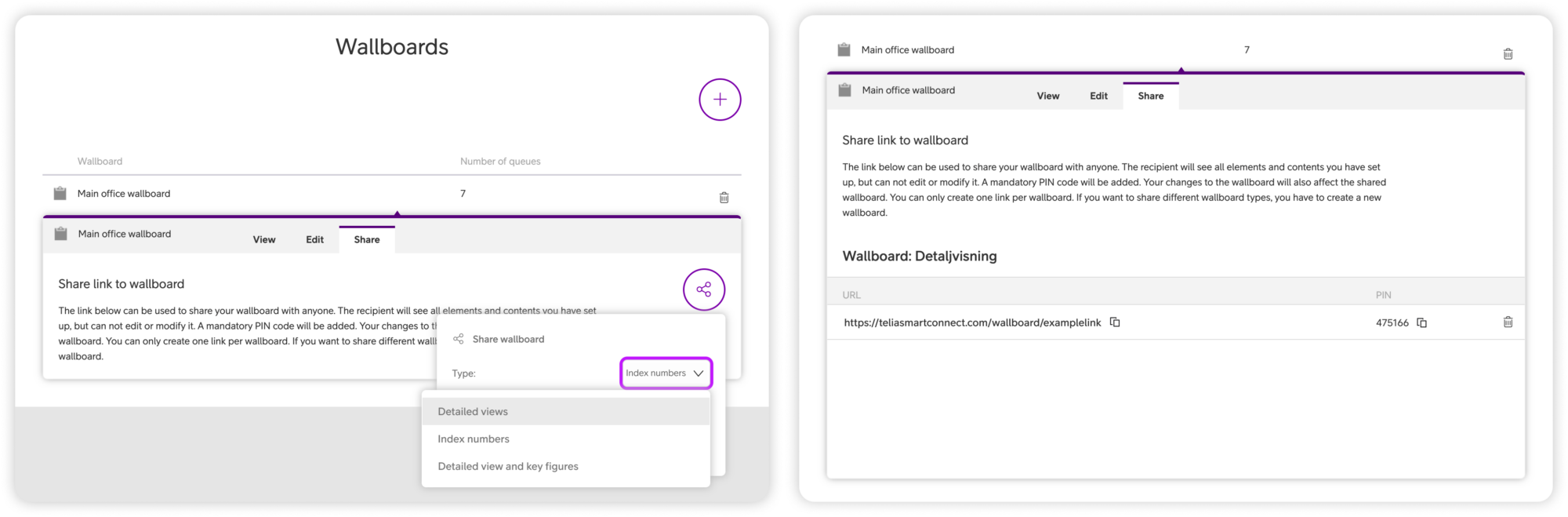
To create a shareable link, the administrator needs to validate through two factor authentication, and the shared Wallboard is secured with a PIN code.
Get started:
- Select the wallboard you wish to share
- Click the Share tab.
- Select what type of wallboard you wish to share: Detailed views, Index numbers or Detailed view and key figures.
- Click the button to create link.
To disable the link, click the delete button next to the link and PIN.
User Guides
Here you can find user guides connected to the feature topic. If you can’t find what you are looking for here you might find it in our main user guide archive.
User Guides