
Telia Smart Connect is also available as an app on both the App Store and Google Play. This means that you can access your switchboard on your mobile devices with just a few taps, making it even more convenient to have full control.




Departments & sub-departments
Departments and sub-departments help structure and manage users in a consistent and scalable way. Administrators can assign users to departments, units, teams, or locations, creating a clear organizational structure. This information enables efficient filtering in the company directory and in the statistics module -streamlining communication and information retrieval.
The update is fully backward compatible and does not impact existing user structures or assignments.
With departments and sub-departments, administrators can:
-
Create and manage top-level departments and sub-departments within a clear hierarchy.
-
Assign users to departments, units, teams, and locations for consistent structuring.
Departments and sub-departments also enable:
-
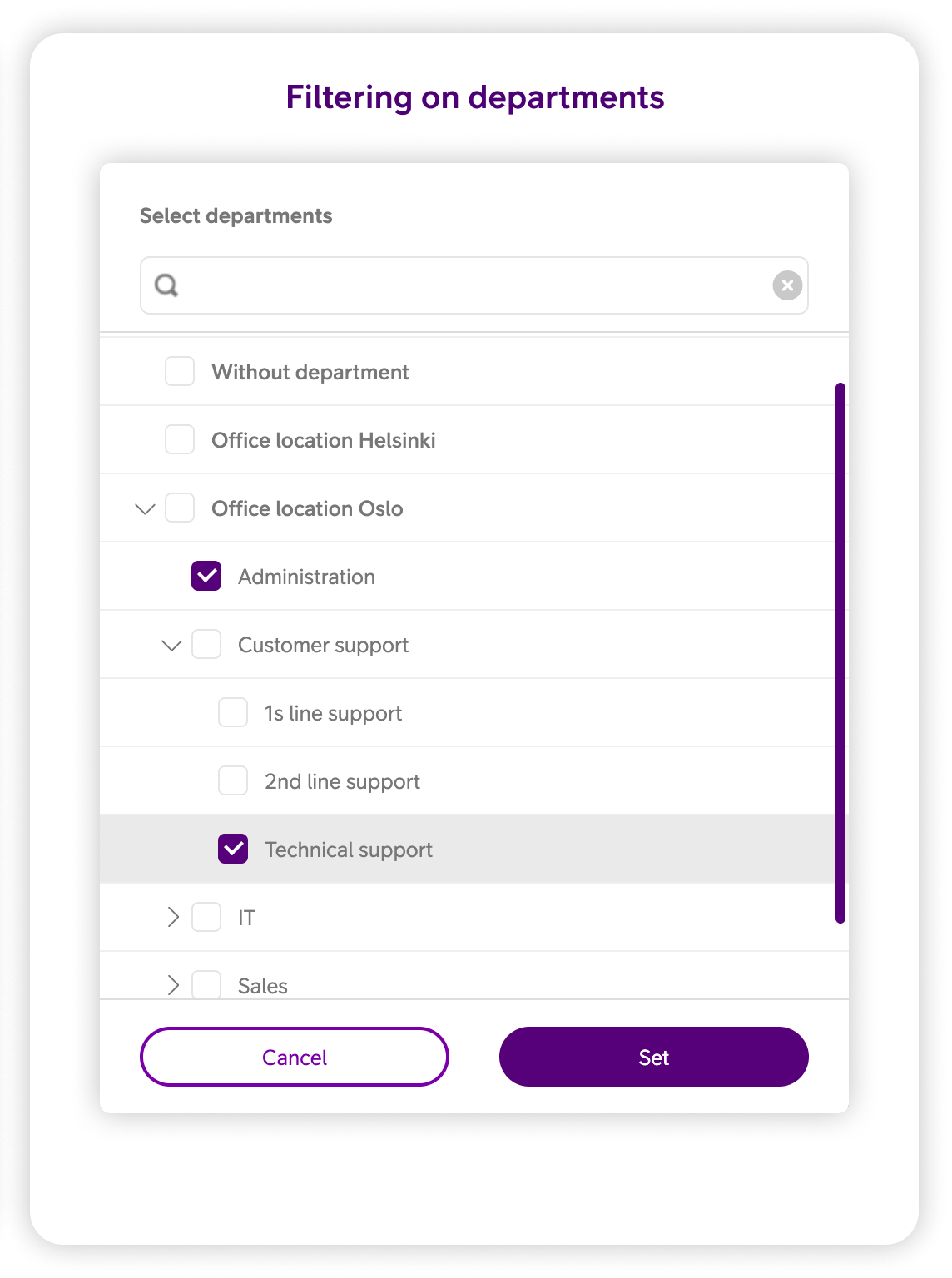
Filtering of users by department and sub-department in the company directory and statistics module.
Getting started
To get started with departments and sub-departments navigate to:
- Click the side menu ☰ in the upper left corner.
- Click Administration.
- Click Other.
- Click Departments.
Setting up and managing departments / sub-departments
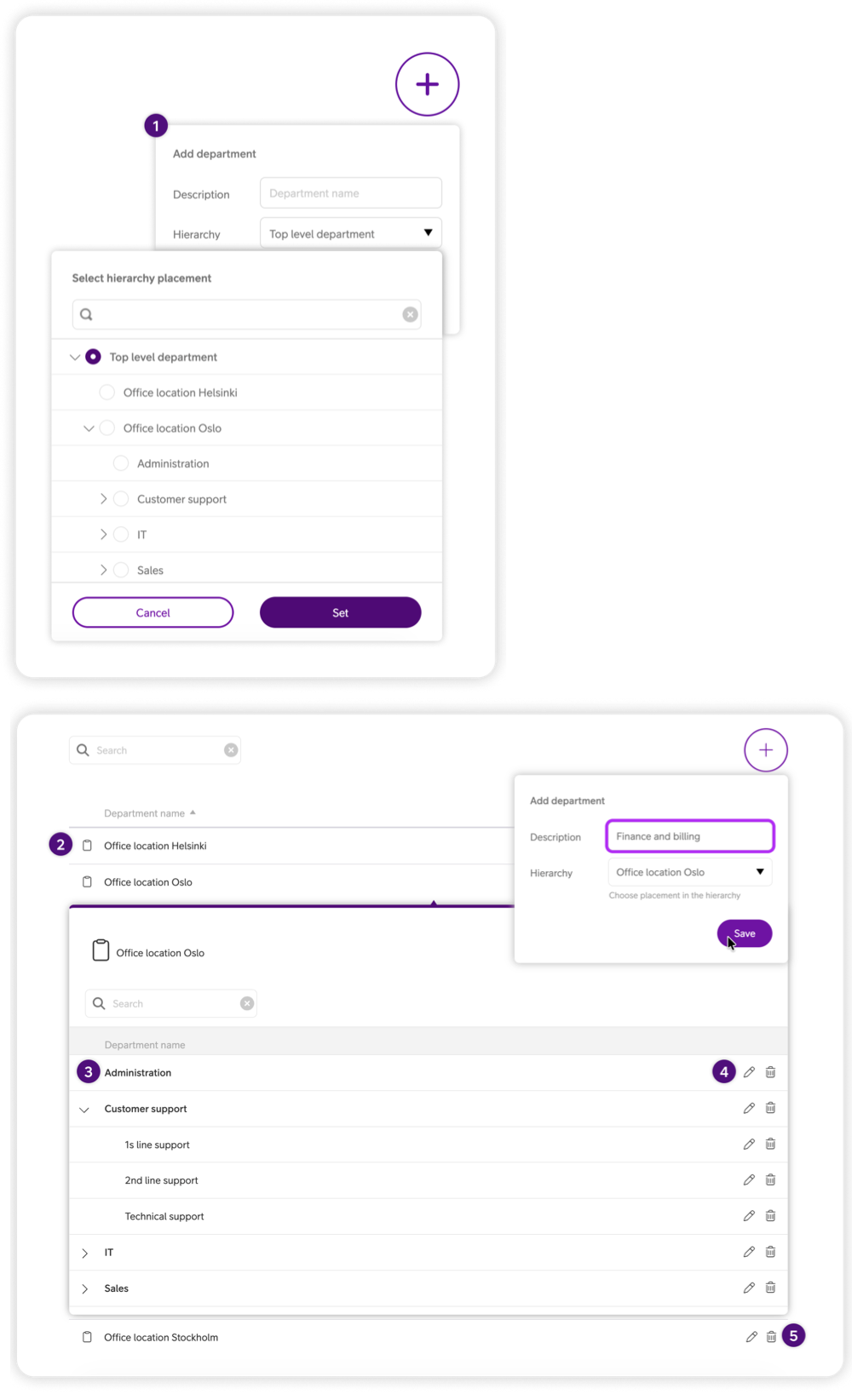
To add a new department / sub-department, enter the Departments module and then:
- Click the plus sign in the top right corner, to add a new department.
- Give it a name.
- Select where in the hierarchy it should sit. The highest level in the hierarchy is named the Top level department.
To manage existing departments and sub-departments:
- To delete, click the trash can icon.
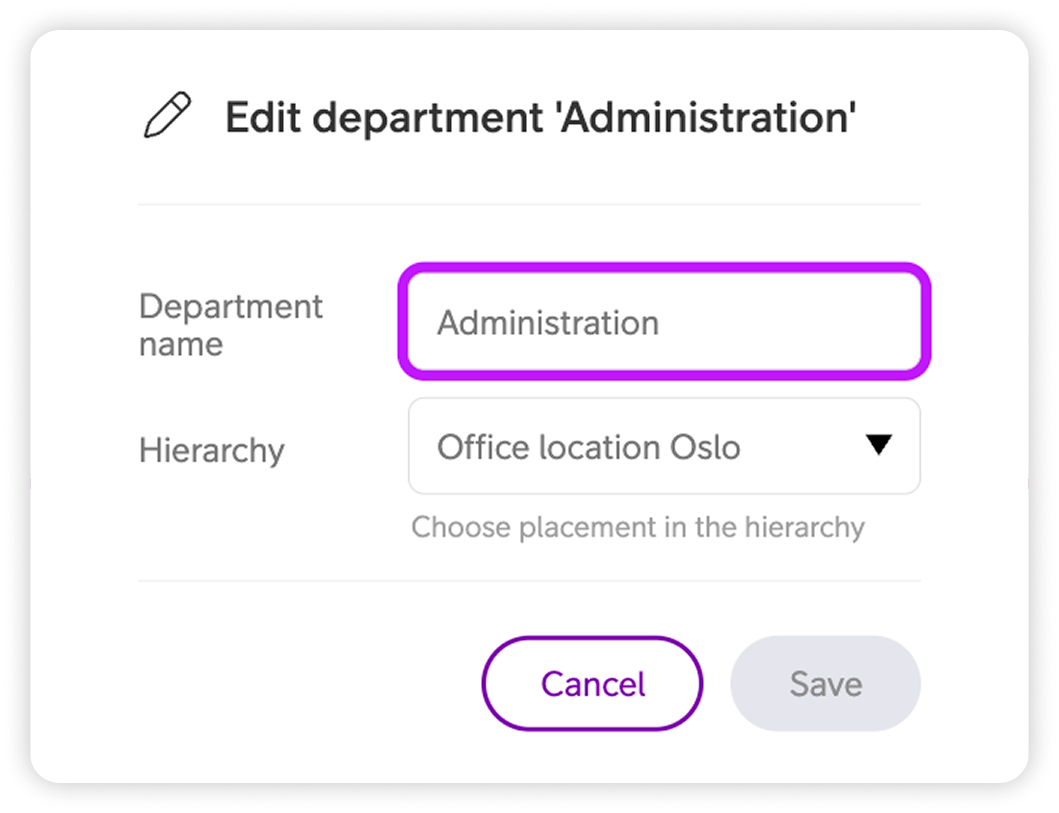
- To edit, click the pen icon.
Note: If moving a sub-department that contains additional nested departments, all underlying departments along with their associated users will be moved
In the attached images you can see:
- Creation of new department or sub-department.
- Top level departments.
- Sub-departments.
- Edit, move or delete the sub department.
- Edit name of/or delete top level department.
Manage users department / sub-department
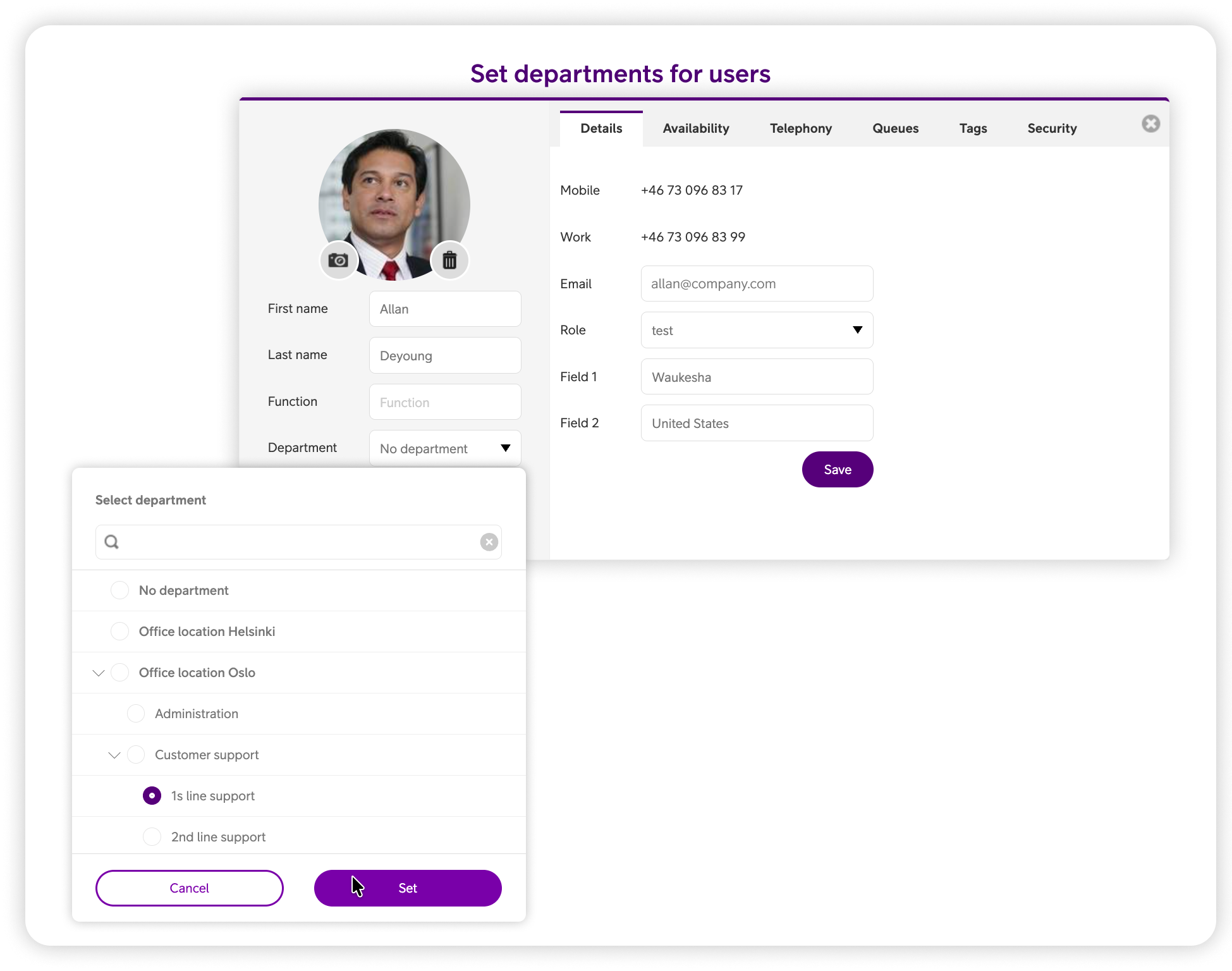
To structure users into departments and sub-departments, follow the steps below:
- Click the side menu ☰ in the upper left corner.
- Click Administration.
- Click Users.
- Select a user.
- Click the Departments dropdown.
- Select desired department.
- Click Set.
- Click Save.
FAQ
Q: Where do I manage departments and sub-departments?
A:
Departments and sub-departments are managed in the administrator module.
-
Click the side menu ☰ in the upper left corner.
-
Click Administration.
-
Click Other.
-
Click Departments.
Q: What is a top-level department?
A:
A top-level department is the highest level in the department hierarchy. It is not placed under another department and can contain one or more sub-departments.
Q: How do I create a new department or sub-department?
A:
-
Navigate to Administration → Other → Departments.
-
Click the plus icon in the top-right corner.
-
Enter a department name.
-
Select where it should be placed in the hierarchy.
-
Click Save.
Q: How do I edit, move, or delete a department or sub-department?
A:
-
Navigate to Administration → Other → Departments.
-
Locate the department or sub-department.
-
Use the edit or delete icons to make changes.
Note: If a sub-department contains additional nested departments, all underlying departments and their associated users are moved together.
Q: How do I assign a department or sub-department to a user?
A:
-
Click the side menu ☰ in the upper left corner.
-
Click Administration.
-
Click Users.
-
Select a user.
-
Open the Departments drop-down.
-
Select the desired department or sub-department.
-
Click Set and then Save.
Q: Who can filter users by department or sub-department?
A:
Filtering by departments and sub-departments is available to all users in the company directory.
Users with access to the statistics module can also use department filtering in Statistics → Reports.
Q: Does setting up departments affect existing users?
A:
No. Departments and sub-departments are fully backward compatible and do not affect existing user structures or assignments unless changes are actively made.
User Guides
Here you can find user guides connected to the feature topic. If you can’t find what you are looking for here you might find it in our main user guide archive.
User Guides