
Telia Smart Connect is also available as an app on both the App Store and Google Play. This means that you can access your switchboard on your mobile devices with just a few taps, making it even more convenient to have full control.


My Profile – Phone Settings
In the telephone settings in My Profile you can manage what device to call from, choose transferring method, what number to display on calls/SMS and manage notifications. What options you have available depend on admin set up.
- Show the company’s main number for outgoing calls.
- Choose where you want to answer the calls with number routing.
- Get full control of notification for queue logins and visitor registration.
How to get started
- Click on your name at the top right to open your profile
- Go to the Telephone tab
Many of the same settings are also available in the mobile app and personal attendant.
Available settings
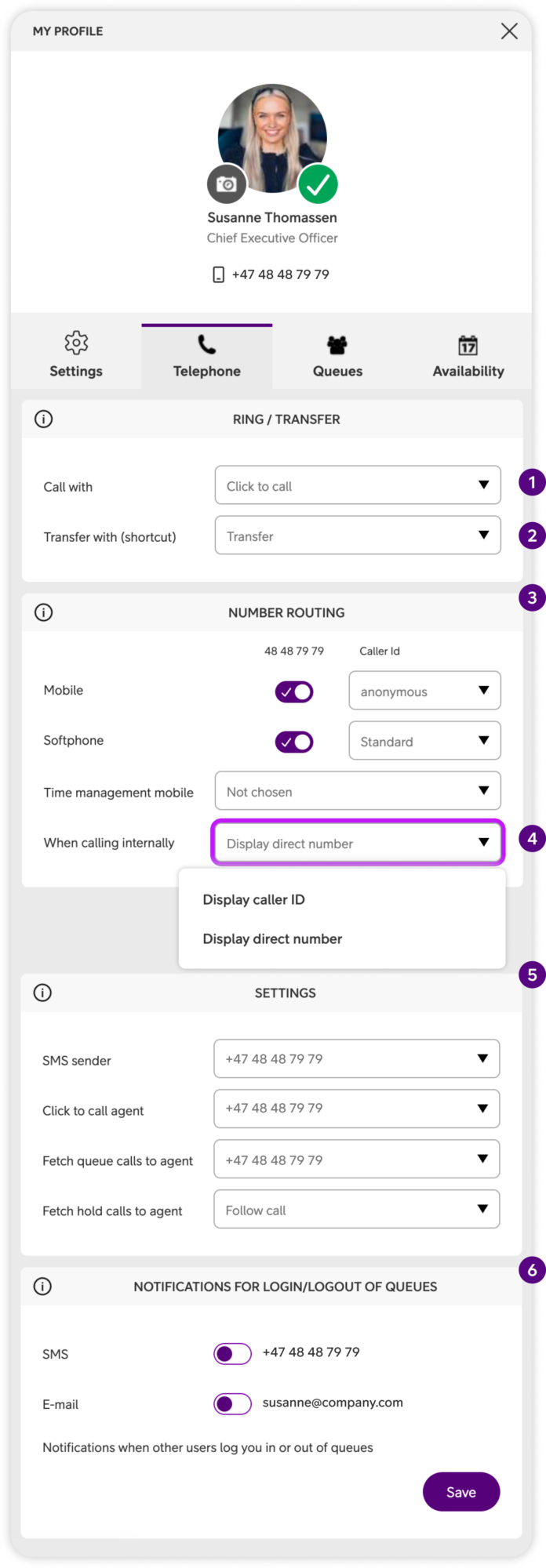
1
Call with
Choose between click to call and softphone for outgoing calls from the switchboard. Click to call generates a call to your mobile phone or IP device, then answered before calling the recipient. You call directly from the switchboard with a headset connected to the PC with a softphone.
2
Transfer with (shortcut)
Select the default method for transferring calls when clicking on the telephone number of colleagues in the Company Directory. This is by default set to transfer with a return, but you can select transfer without return or assisted forwarding. You can always open a contact and choose between the different methods regardless of this choice.
3
Number routing
Determine where incoming calls should be directed when they come to your mobile and/or fixed number. In the example screenshot, the user is registered with two phone numbers. Using the toggle, they have configured calls to the mobile number to be sent to both the mobile phone and the softphone, while calls to the fixed number are also routed to Teams.
Caller ID allows you to choose which number is displayed when making an outgoing call, such as your company’s main number.
With Time management mobile, you can specify that the selected Caller ID is used only during the defined opening hours. Outside of these hours, your standard Caller ID will be displayed.
4
When calling internally
If you have set a Caller ID in the step above, you can choose whether to apply it or not to internal calls (calls made to other numbers in the company directory).
Select one of the following from the dropdown menu:
– Display direct number: Internal recipients will see the number associated with your device.
– Display Caller ID: Internal recipients will see the Caller ID assigned to your device, the same as for external calls.
Note: This is currently only available for mobile calls.
5
Settings
SMS sender: Define the sender number or name for SMS messages sent from the switchboard / mobile app.
Click to call agent: Allows you to choose whether the mobile phone or IP device is to be applied for click to call.
Fetch queue calls to agent: Allows you to choose whether the mobile phone or IP device should be the default recipient when you retrieve queue calls manually in the switchboard.
Fetch hold calls to agent: Allows you to select whether the mobile phone or IP device should be the default recipient when you retrieve calls on hold.
6
Notifications for login/logout of queues
If you wish, you can receive notification by SMS and/or e-mail every time a colleague logs you off and on the company’s queues. The email address can be changed under the profile settings tab.
Softphone
With Telia Smart Connect, you can use the built-in softphone to make and receive calls directly from your web browser. The softphone requires a browser that supports WebRTC, which most modern browsers do.
First use
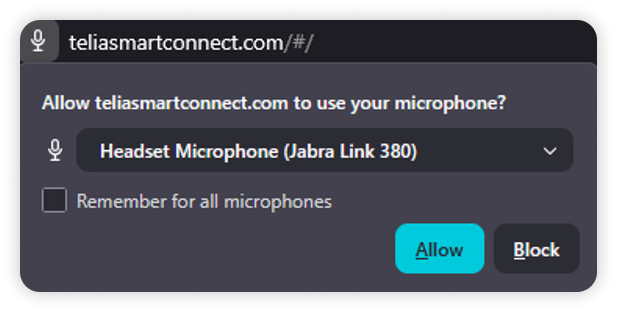
The first time you log in to Telia Smart Connect in a new browser, you will be asked to allow access to your microphone. If you do not allow access, the softphone will not be available.
Call configuration
By default, your Number routing profile is set up so that incoming calls to your phone numbers also ring the softphone. To change this:
- Click your name in the top right corner to open My profile.
- Go to Telephony settings.
- Scroll down to Number routing and toggle off ‘Softphone’.
Here, you can also select which caller ID to use for outgoing calls from the softphone.
The softphone can handle multiple calls at the same time if call waiting is configured in your Availability settings.
Additional settings
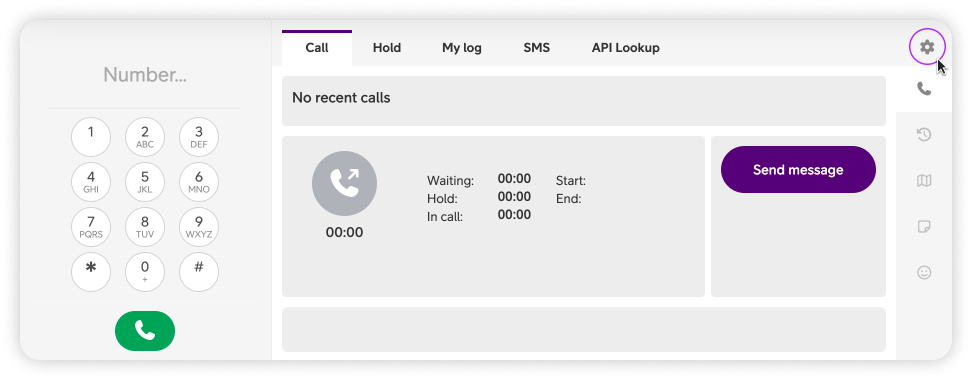
By default, the softphone uses the audio devices set as default in your operating system. To use other devices or adjust more settings, click the cog icon in the upper right corner of the dial pad. The following options are available:
Calling notification
- Notification: Shows a browser notification when you receive an incoming call.
- Ringtone: Plays a ringtone in addition to the browser notification.
Audio settings
- Speaker volume: Controls the volume of audio during calls.
- Ringtone volume: Controls the volume of the ringtone.
- Input device: The microphone to use in Telia Smart Connect.
- Output device: The device to use for call audio.
- Ringtone device: The device to use for the ringtone. For example, you can play call audio through a headset and the ringtone through your computer speakers.
Audio processing
These options can help improve audio quality:
- Echo cancellation: Reduces echo, for example when you use a speaker and the other party hears their own voice.
- Noise suppression: Reduces background noise picked up by your microphone in noisy environments.
- High-pass filter: Filters out low-frequency sounds, such as rumble or “boomy” microphone audio.
- Automatic gain control: Automatically adjusts your microphone level based on the volume of the incoming audio.
FAQ
Q: What can I do under phone settings in my profile?
A: You can manage your call and SMS settings, change your display number, select the default forwarding method, and activate the softphone for calling from your PC.
Q: How do I access telephone settings?
A: Click your name at the top right to open your profile, then go to the “Telephone” tab.
Q: How can I choose how to make calls from the switchboard?
A: Under “Call with” in the “Telephone” tab in your profile, you can choose between making calls using the softphone, mobile phone, or IP device.
Q: How do I set up call forwarding?
A: Under “Transfer with” in the “Telephone” tab in your profile, you can select whether calls are forwarded with or without return, and whether you use assisted forwarding.
Q: How do I select a caller ID for outgoing calls?
A: Under “Number routing” section in the “Telephone” tab in your profile, choose the number you want to display for outgoing calls and where you want to receive calls.
Q: Can I change the sender for SMS messages?
A: Yes. In the “Settings” section in the “Telephone” tab in your profile, you can define the sender name or number for SMS messages sent from the switchboard.
Q: Can I be notified whenever I am logged in our out of a queue by a colleague?
A: You can enable notifications via SMS or email when colleagues log you in or out of company queues. These options are available in the profile settings.
User Guides
Here you can find user guides connected to the feature topic. If you can’t find what you are looking for here you might find it in our main user guide archive.
User Guides